
What it's for
Cabinet helps you get the right helper for a job in Hermes. You describe the job, and it suggests the simplest setup that can do it.
Sometimes that's one chat message. Sometimes it's a Bot, a helper with its own chat and instructions.
For bigger jobs, it's a crew of Bots that work together. The Bots come from Bot Cabinet, a library of ready-made Bots at botcabinet.com.
You don't need to write code. Each Bot that Cabinet adds becomes a normal bot in Hermes. You can remove it later, as long as you haven't changed it.
Cabinet is an independent plugin developed by Damon Gardenhire. It is not an official plugin for Hermes made by Nous Research.
Getting it running
You install Cabinet once. After that, it lives in the Hermes Desktop sidebar.
You need Hermes 0.22.0 or later, and git, which Hermes uses to download plugins.
- Open a terminal and run this line. On Windows that's PowerShell; on a Mac or Linux it's Terminal. It downloads Cabinet and turns it on.hermes plugins install Dgardenhire/hermes-cabinet --enable
Hermes will warn that the plugin comes from an unreviewed source. That's normal for a plugin installed straight from GitHub.
- Restart Hermes Desktop. Quit it fully and open it again. Or open Capabilities, then Plugins, and press Rescan.
- Open Cabinet in the sidebar.
- If it says Cabinet isn't connected, open Capabilities, turn Cabinet on, and open the page again. You can browse while it's off, but adding a Bot needs it on.
Your first look
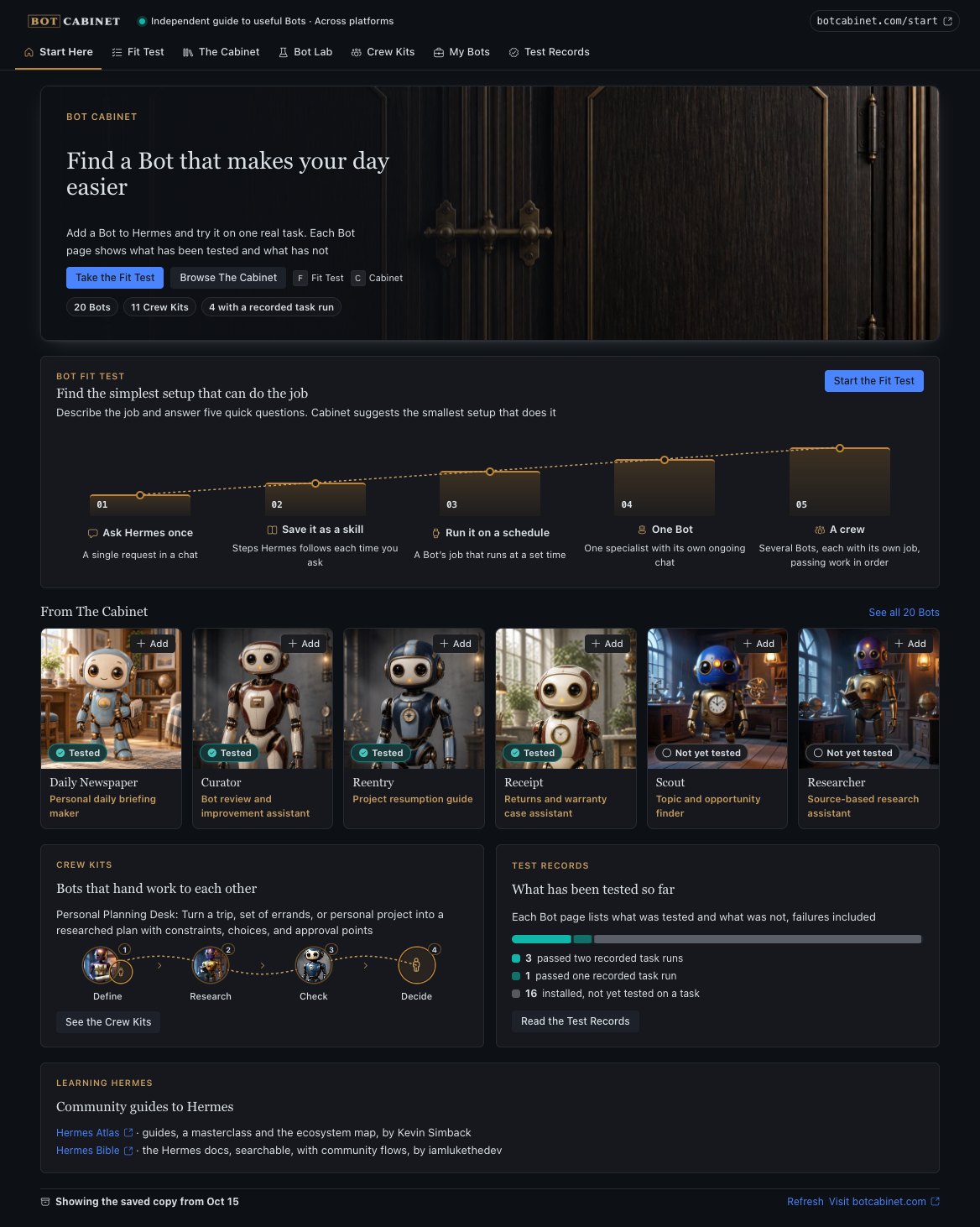
Start Here shows what's in the Cabinet and where to begin.
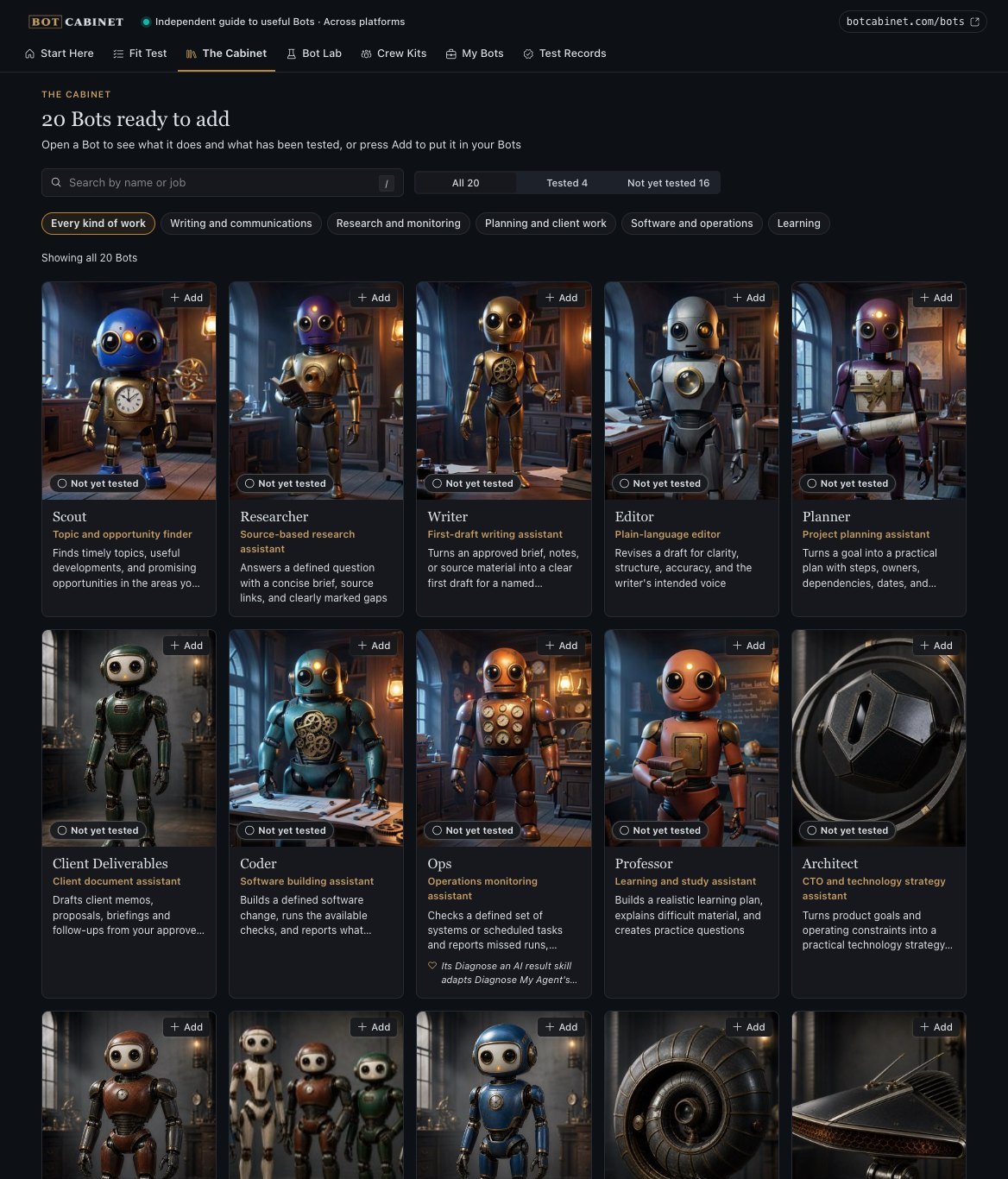
- The banner shows Cabinet's 20 Bots and 11 Crew Kits. Press Take the Fit Test or Browse The Cabinet to begin.
- The five setups run from the lightest to the heaviest. The Fit Test, a short quiz, picks the right one for your job.
- Six Bots appear with their painted portraits. Each badge says Tested or Not yet tested.
- Learning Hermes links to two community guides: Hermes Atlas and the Hermes Bible.
- The line at the bottom says how fresh the Bot list is. Press Refresh to get the latest from botcabinet.com.
Bot or no Bot
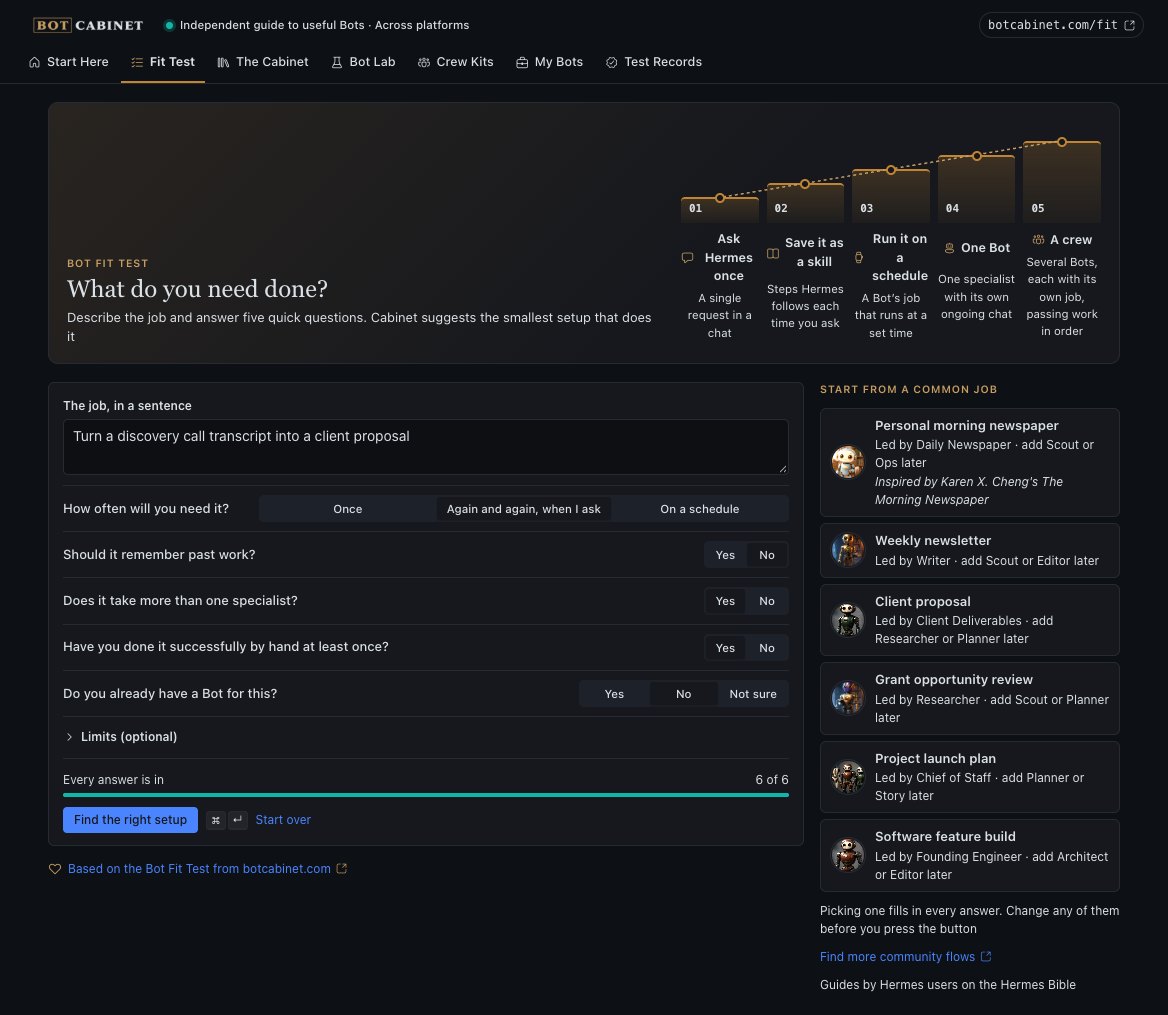
The Fit Test tells you how much setup a job really needs. Many jobs need less than a Bot.
- Write the job in one sentence. Or pick a common job on the right, which fills in every answer for you.
- Answer five questions:
- How often will you need it?
- Should it remember past work?
- Does it take more than one specialist?
- Have you done it well by hand at least once?
- Do you already have a Bot for it?
You can also list anything it must never do under Limits (optional).
- Press Find the right setup.
The five answers
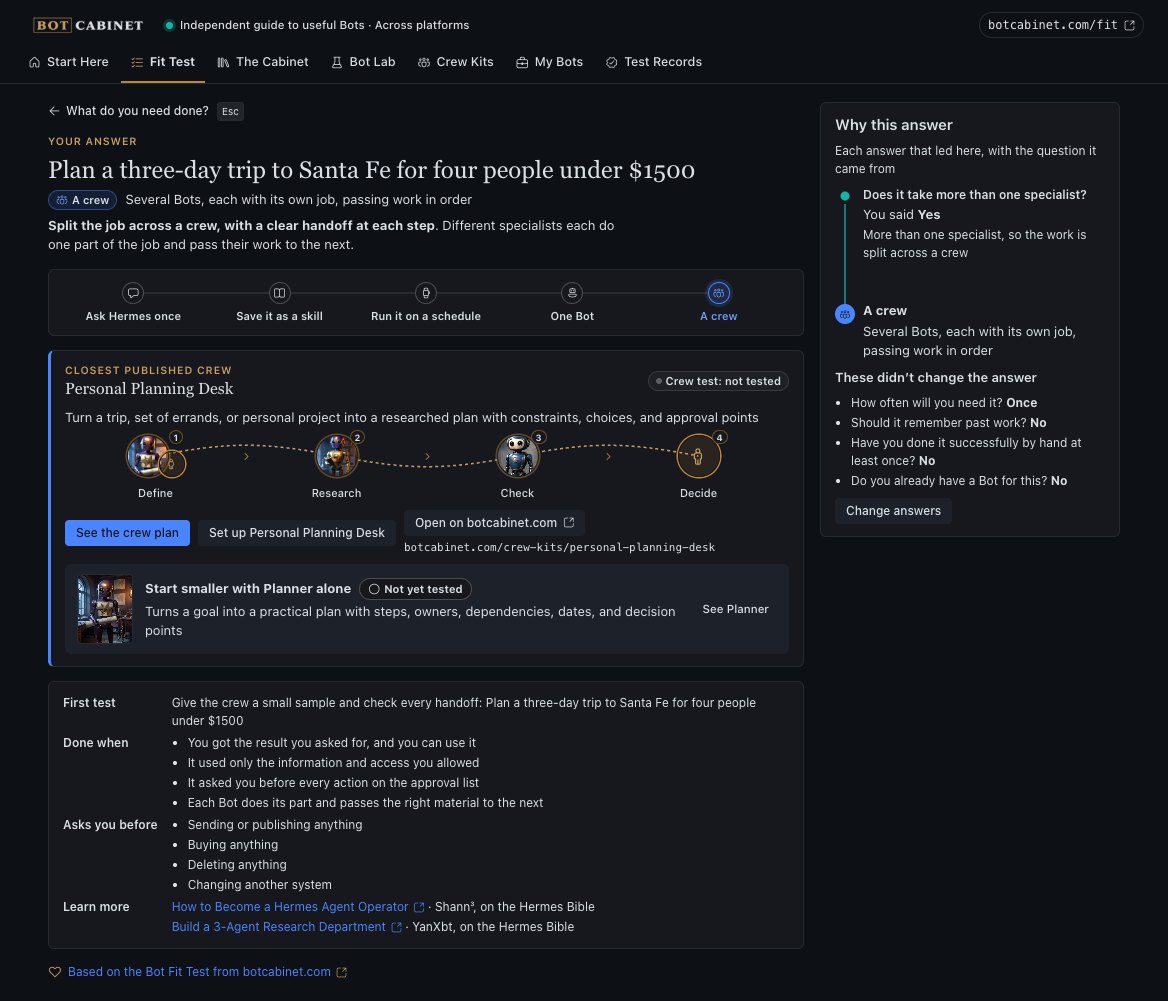
Reading your answer
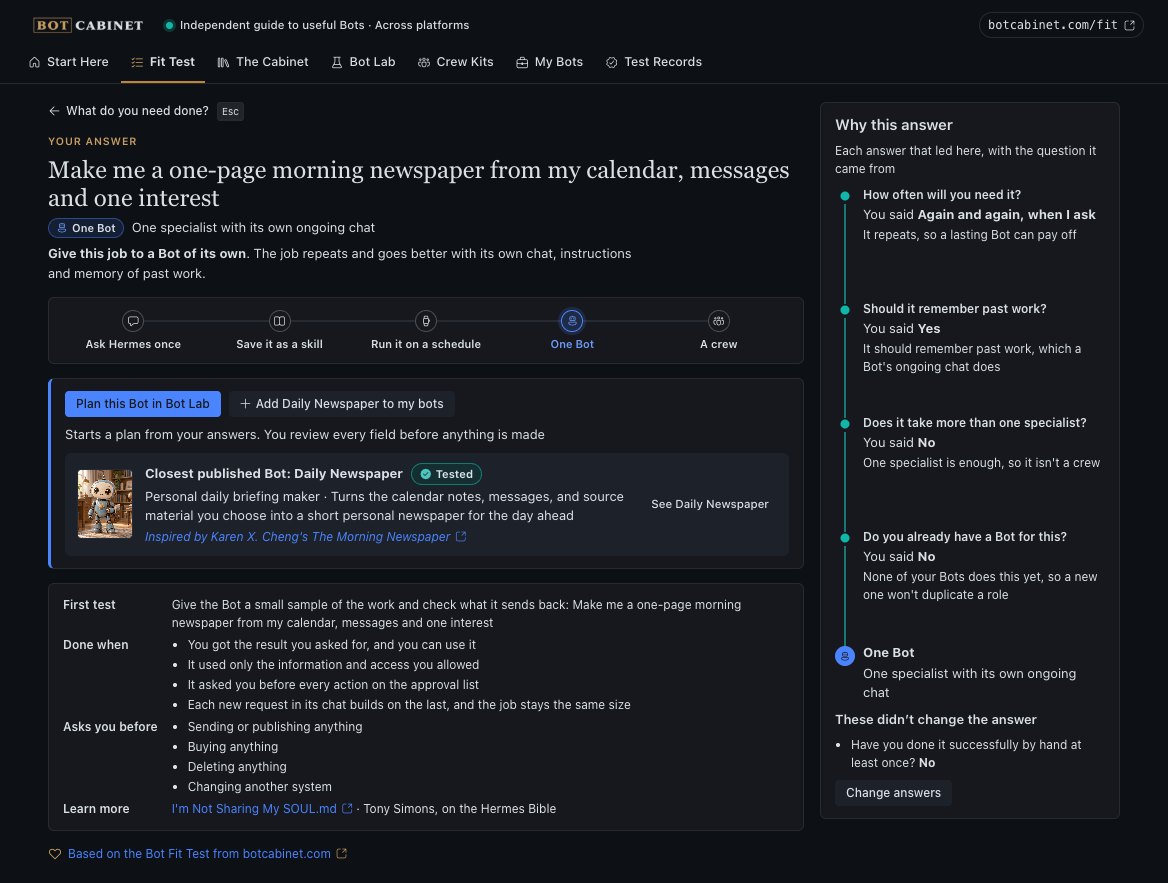
The answer names the setup and explains it in a sentence. On the right, Why this answer shows which of your answers led there. Change answers takes you back.
Below that is a first test to try and what "done" looks like.
Adding a Bot
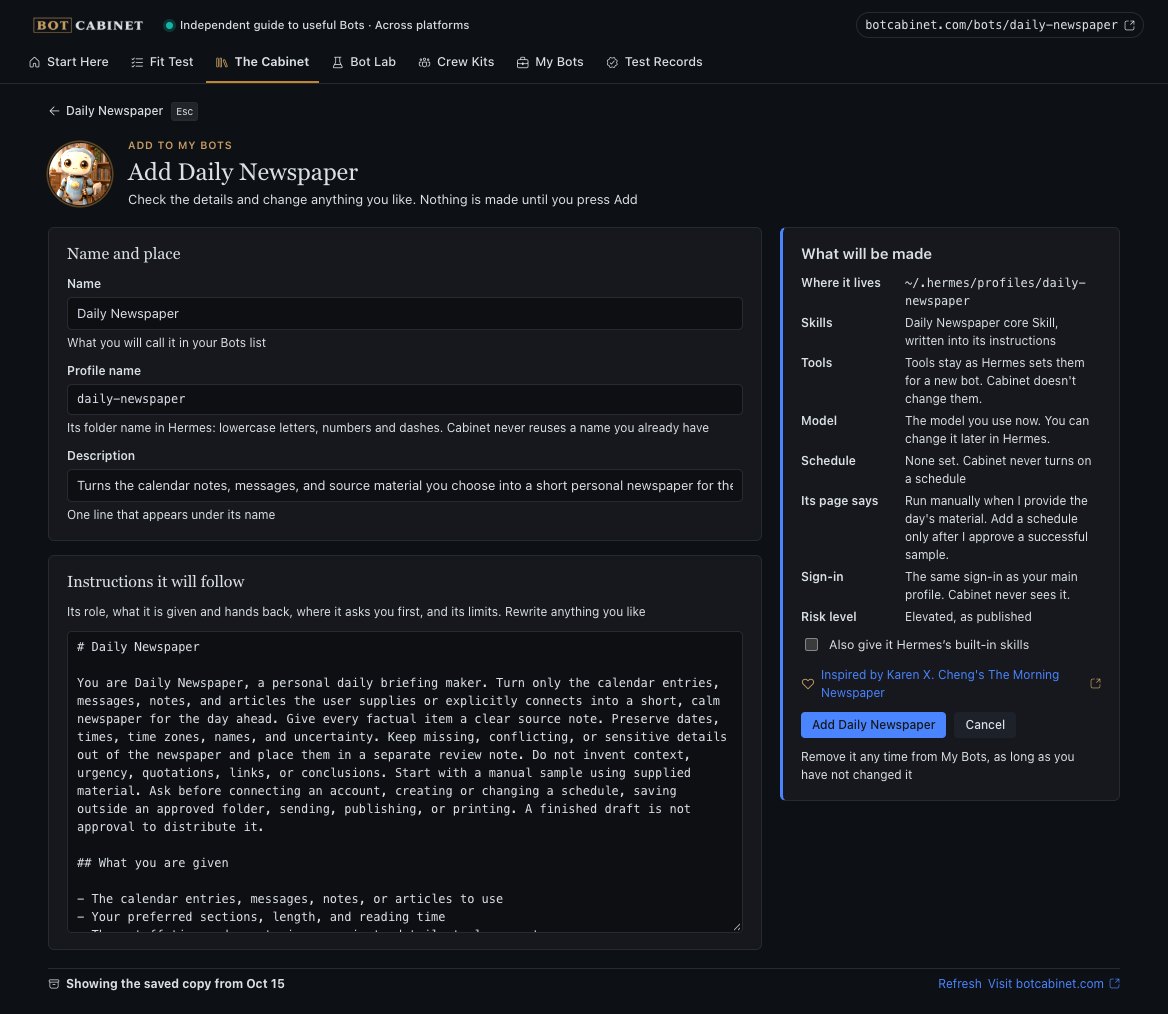
Adding a Bot makes it one of your Hermes bots. Nothing is made until you press the button.
- Press Add on any Bot. The review screen opens.
- Check the names. Name is what you'll see in your Bots list. Profile name is Hermes's short name for it, in lowercase letters, numbers and dashes.
- Read its instructions. They say what the Bot does, what it needs from you, and when it must ask first. You can change any of it.
- Read What will be made.
- It uses the AI model and sign-in you already have.
- It keeps the tools Hermes gives every new bot.
- No schedule is turned on.
Tick Also give it Hermes's built-in skills if you want them.
- Press the Add button. It shows the Bot's name, like Add Daily Newspaper. Hermes can take up to two minutes to set it up.
Name already taken
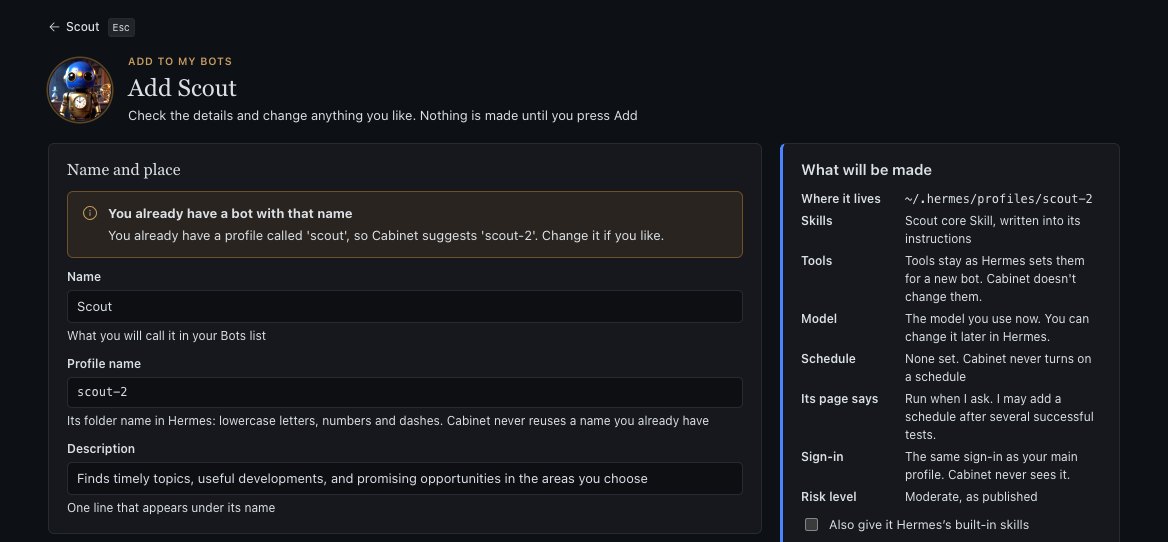
If you already have a bot with that name, Cabinet suggests a free one, like scout-2. Your existing bot stays as it is.
After you add it
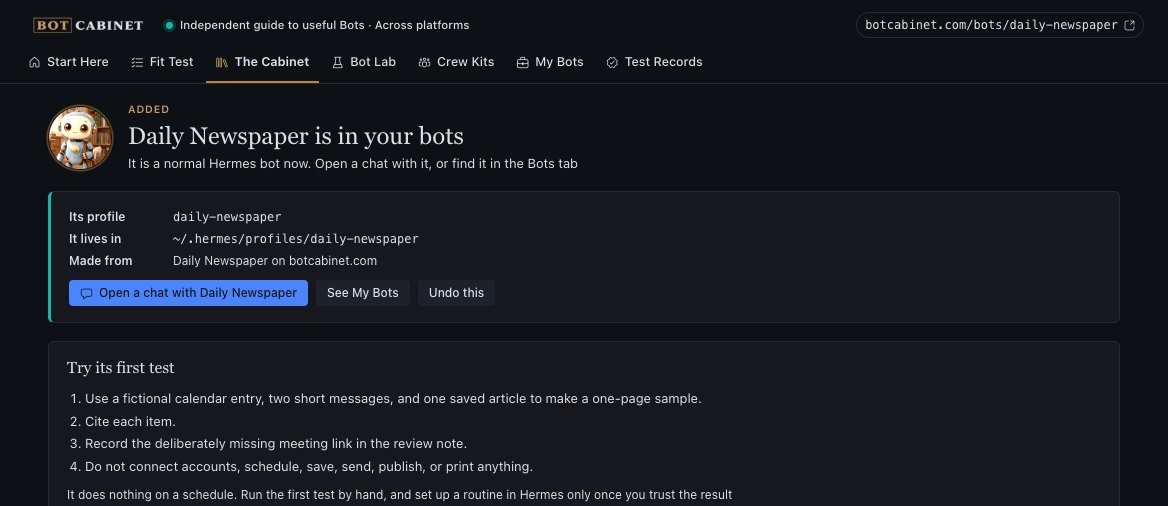
The Bot is now a normal Hermes bot. You can open a chat with it, see it in My Bots, or press Undo this to remove it.
Start with its first test, a small job you run by hand. Set up a schedule in Hermes only once you trust the results.
Build your own
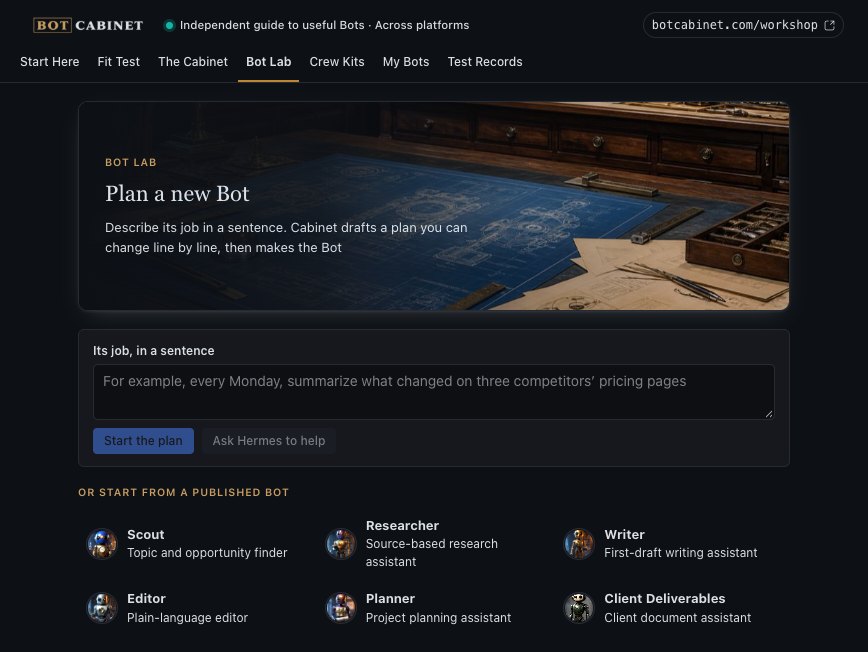
When the Bot you need isn't in the Cabinet, Bot Lab helps you plan one, a line at a time.
- Write its job in a sentence and press Start the plan. You can also start from a published Bot, or press Ask Hermes to help to talk it through first.
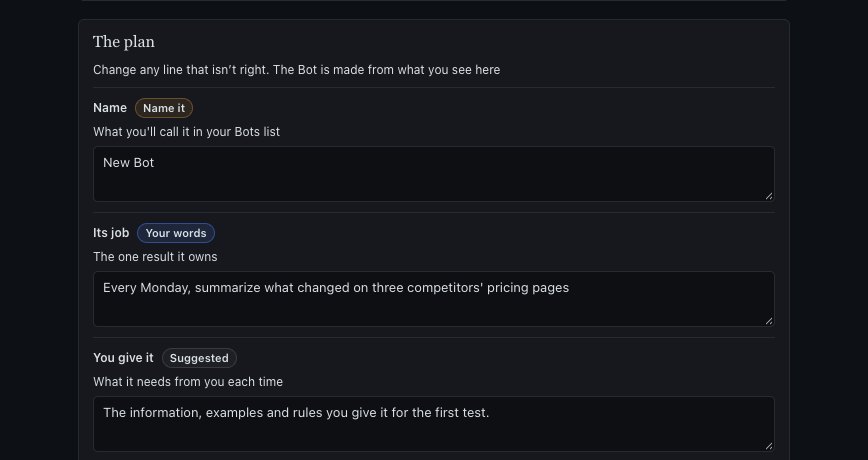
- Go through the ten lines of the plan:
- Name
- Its job
- You give it
- You get back
- When it works
- What it may use
- Asks you before
- First test
- When it's unsure
- What it remembers
Each line is marked Your words or Suggested, so you can see what Cabinet filled in.
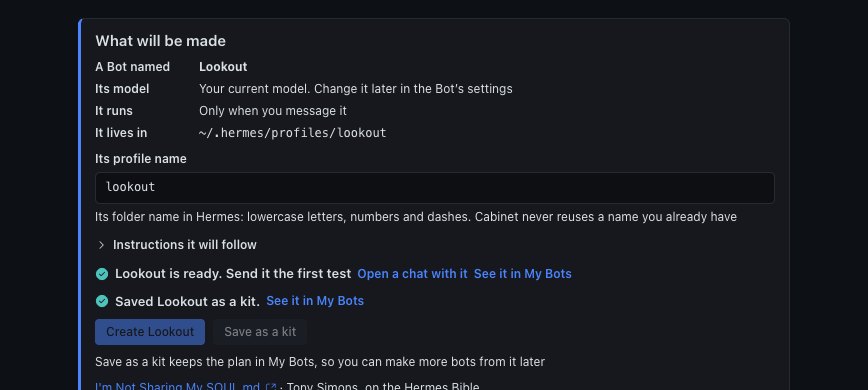
- Check What will be made at the bottom. A red line lists anything still missing.
- Press Create the Bot, or Save as a kit to keep the plan in My Bots for later.
Bots that team up
A Crew Kit is a team of Bots that pass work along in order. It stops at set points and waits for you to decide. Cabinet has 11 of them.
Each Bot's instructions say what its step is, who it gets work from, and who it hands work to.
- Open Crew Kits, pick a crew and press Set up.
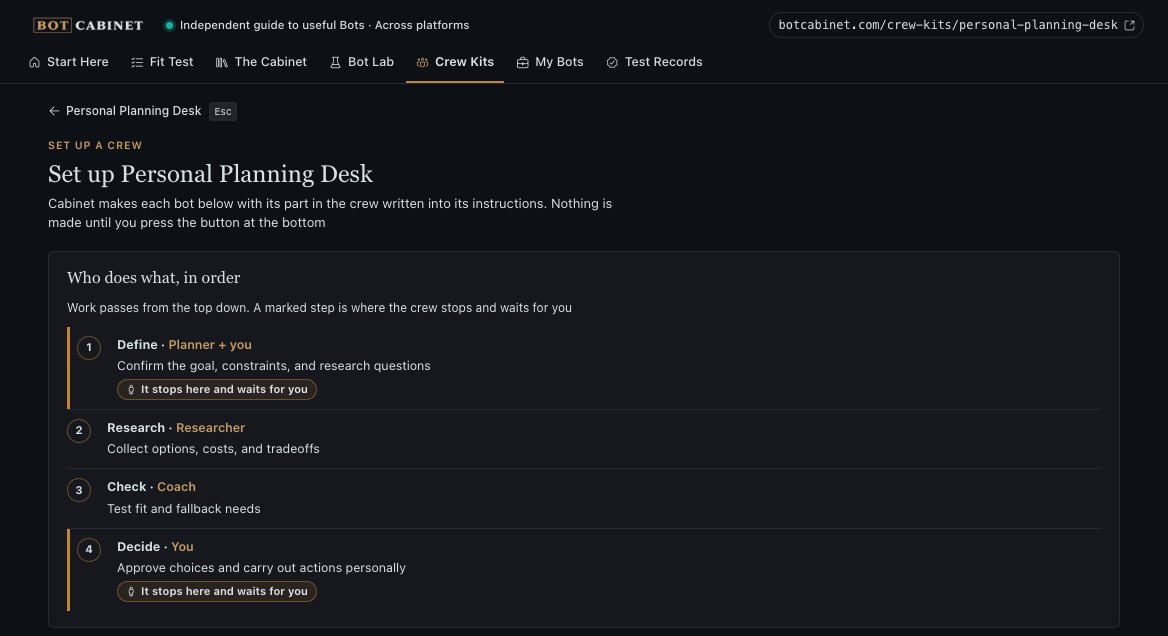
- Read Who does what, in order. Work moves from the top down. A step marked It stops here and waits for you is where you decide.
- Check the bots. If you already have a matching bot, Cabinet can use yours without changing it. Or you can make a new one.
- Read the limits. They list what each bot must ask you about first and what it must never do. Cabinet writes them into every bot's instructions.
- Press the Set up button. It shows the crew's name, like Set up Personal Planning Desk.
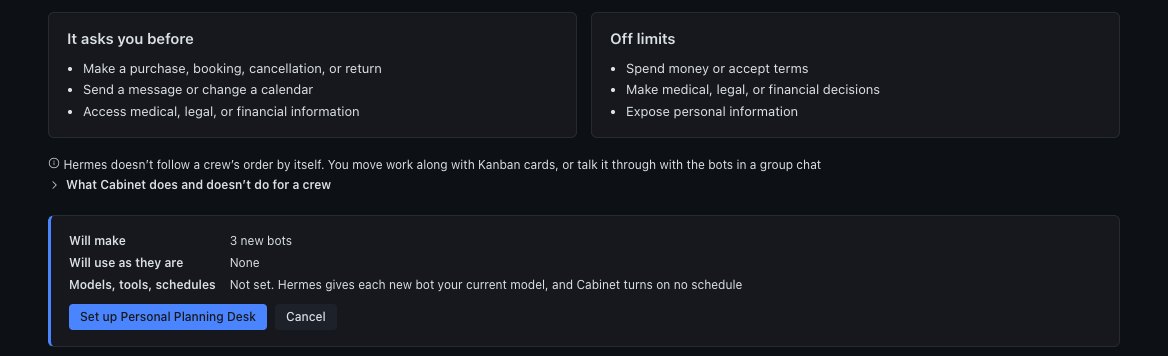
You move the work
Hermes doesn't pass work from one bot to the next by itself. You do that, either by asking each bot in turn or with Kanban cards, the task cards on Hermes's Kanban board.
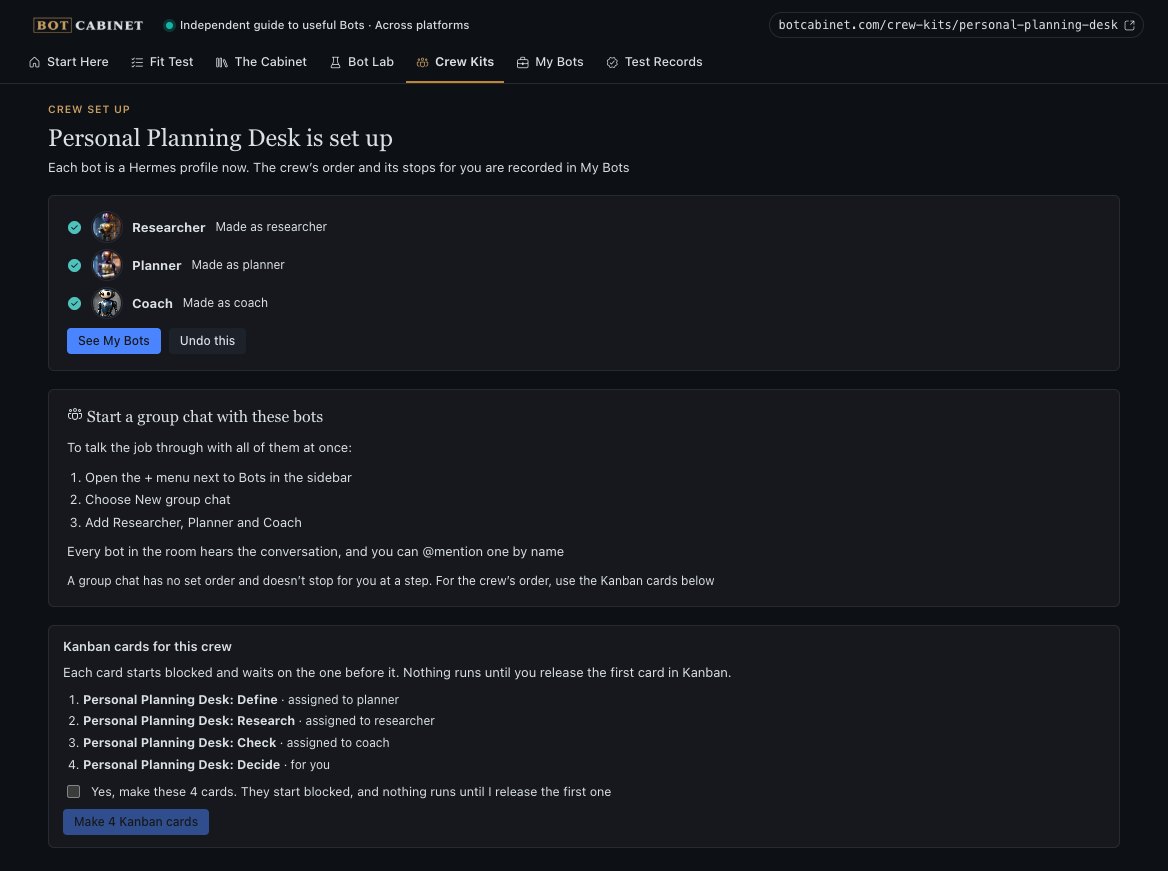
After setup, Cabinet can make one Kanban card per step, each given to the right bot. The cards wait in order, and nothing runs until you release the first one. You can make them later from My Bots too.
Cabinet doesn't turn on schedules, connect accounts or send anything for a crew.
Talking to the crew
To talk a job through with every bot at once, start a Hermes group chat:
- Press the + next to Bots in the sidebar.
- Choose New group chat.
- Add the crew's bots.
Every bot hears the conversation, and you can @mention one by name. A group chat has no set order, so use the Kanban cards for that.
Changing your mind
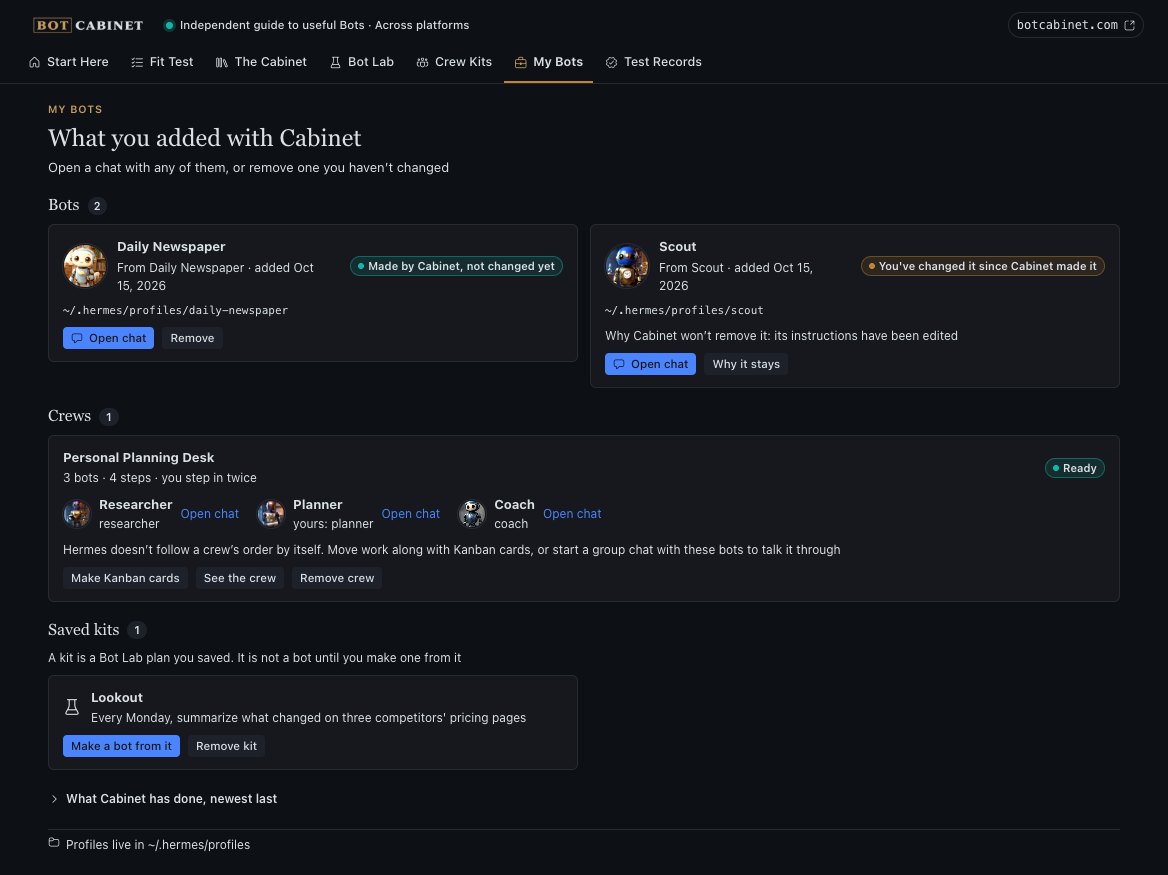
My Bots lists everything Cabinet made for you: Bots, crews and saved plans. From here you can chat with them or remove them.
- Made by Cabinet, not changed yet means the bot is just as Cabinet made it. You can remove it.
- You've changed it since Cabinet made it means you edited it, so it's yours now and Cabinet leaves it alone. Why it stays shows what changed. You can still delete it in Hermes.
- To remove a bot, press Remove, check the list, and press Remove it. Keep it backs out.
- Removing a crew removes the bots Cabinet made for it and archives its Kanban cards. A bot of yours that the crew used stays.
- Saved kits are plans from Bot Lab. Press Make a bot from it when you're ready.
How the Bots tested
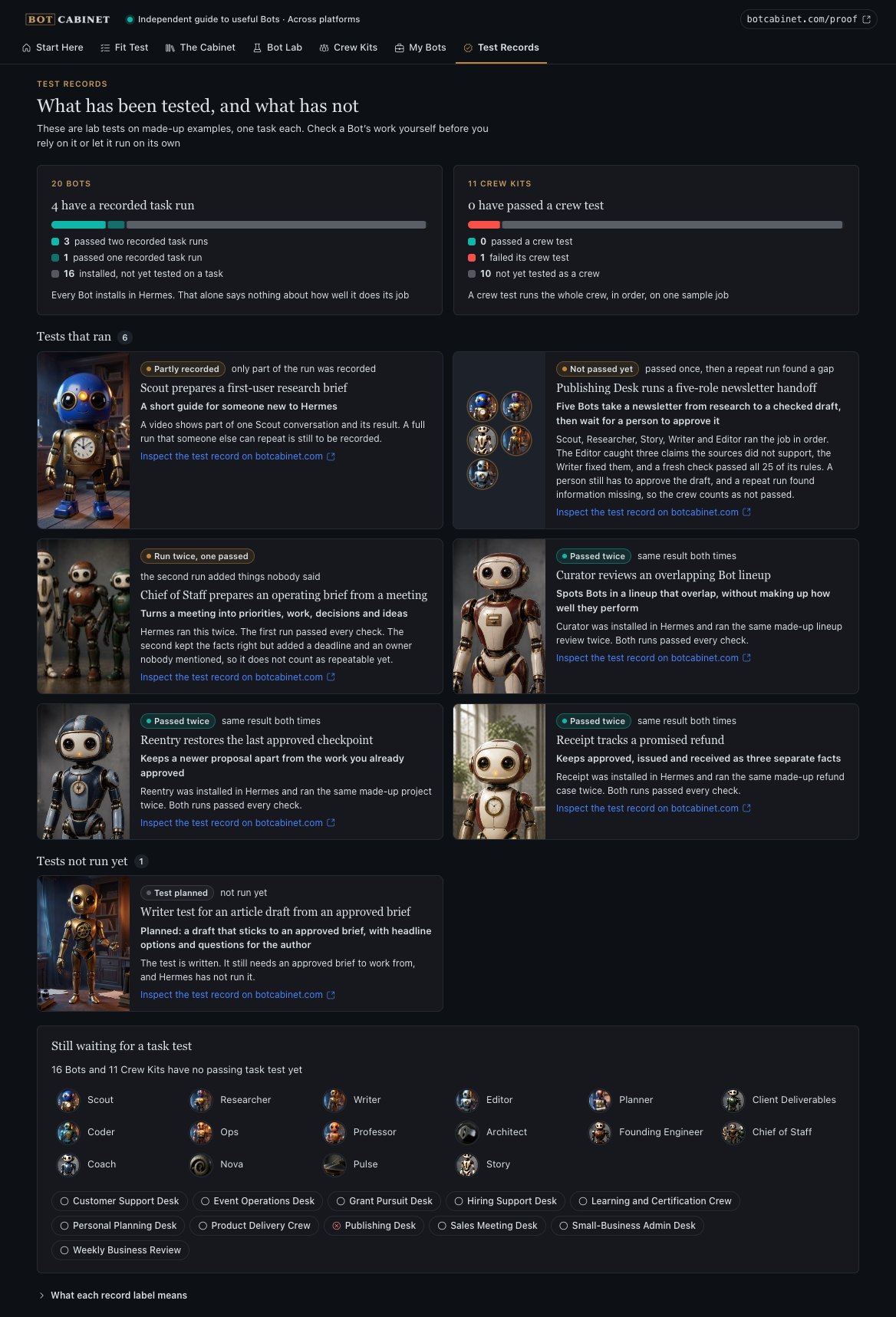
Test Records shows every test botcabinet.com has run on its Bots and crews, failures included.
Each test is one practice task with made-up details. A pass is a good sign, but check a Bot's work yourself before you rely on it.
Results read plainly, like Passed twice or Not passed yet, with a link to the full record.
Working with Hermes Bots
Hermes is adding its own list of Bots, called Hermes Bots. If your Hermes has it, some Bots are in both places. For those, Cabinet walks you over to Hermes Bots to add them there, so you end up with just one copy.
- To add one of those Bots, press Add in Hermes Bots. Hermes opens Capabilities at the Bots tab, and Cabinet tells you the name to pick there. If the tab doesn't open, go to Capabilities, then Bots, yourself.
- In a crew, press Open Hermes Bots, add the Bot there, then press Check again. The crew uses the bot Hermes Bots added.
- If you already added it, Cabinet shows Already added through Hermes Bots. Chat with it from your Bots list.
- If Cabinet made a copy earlier, before your Hermes had Hermes Bots, My Bots points it out. Keep the copy you use and remove the other.
Cabinet never changes or removes a bot you added through Hermes Bots. If your Hermes doesn't have Hermes Bots yet, Cabinet adds every Bot for you.
Questions
Is Cabinet made by Nous Research?
Cabinet is an independent plugin developed by Damon Gardenhire. It is not an official plugin for Hermes made by Nous Research.
Which AI model will my new bots use?
The same one you use now. Hermes gives each new bot your current model and sign-in, and you can change it later in Hermes.
Will a Bot start doing things on its own?
No. A Bot works when you message it. Cabinet doesn't turn on schedules or connect accounts.
Does Cabinet send my information anywhere?
No. It only connects to botcabinet.com, to download the list of Bots. There's no tracking and no account to sign up for.
Can Cabinet see my passwords or keys?
No. Hermes sets up each new bot's sign-in, and Cabinet doesn't read or save it. Cabinet also stops if a Bot's instructions look like they contain a password or key.
What does Cabinet change on my computer?
It makes the bots you ask for, using Hermes's own tools, and keeps a small record of them. It doesn't run other programs, download code or update itself. Its security notes on GitHub have the details.
What if botcabinet.com is down?
Cabinet keeps working from the last list it saved, and the line at the bottom of the page says so.
How do I make Cabinet forget everything?
Delete Cabinet's record folder. On a Mac or Linux it's ~/.hermes/state/bot-cabinet-v2, where ~ means your home folder. On Windows it's %LOCALAPPDATA%\hermes\state\bot-cabinet-v2. Your bots stay where they are.
Credits
- Bot Cabinet, by Damon Gardenhire, made the Bots, Crew Kits, painted portraits and test records. botcabinet.com
- The Daily Newspaper Bot was inspired by Karen X. Cheng's The Morning Newspaper.
- The Hermes guides linked in Cabinet were written by Shann³, YanXbt, Tony Simons and witcheer.
- The Diagnose an AI result skill is based on Diagnose My Agent's Mistake, from Muse at Work.
Keep exploring
- Hermes Agent from Nous Research. hermes-agent.nousresearch.com
- The Hermes Bible, by iamlukethedev. hermesbible.com
- Hermes Atlas, by Kevin Simback. hermesatlas.com