What it is
The Clearing is a plugin, an add-on for Hermes Desktop. It gives you one page to write in.
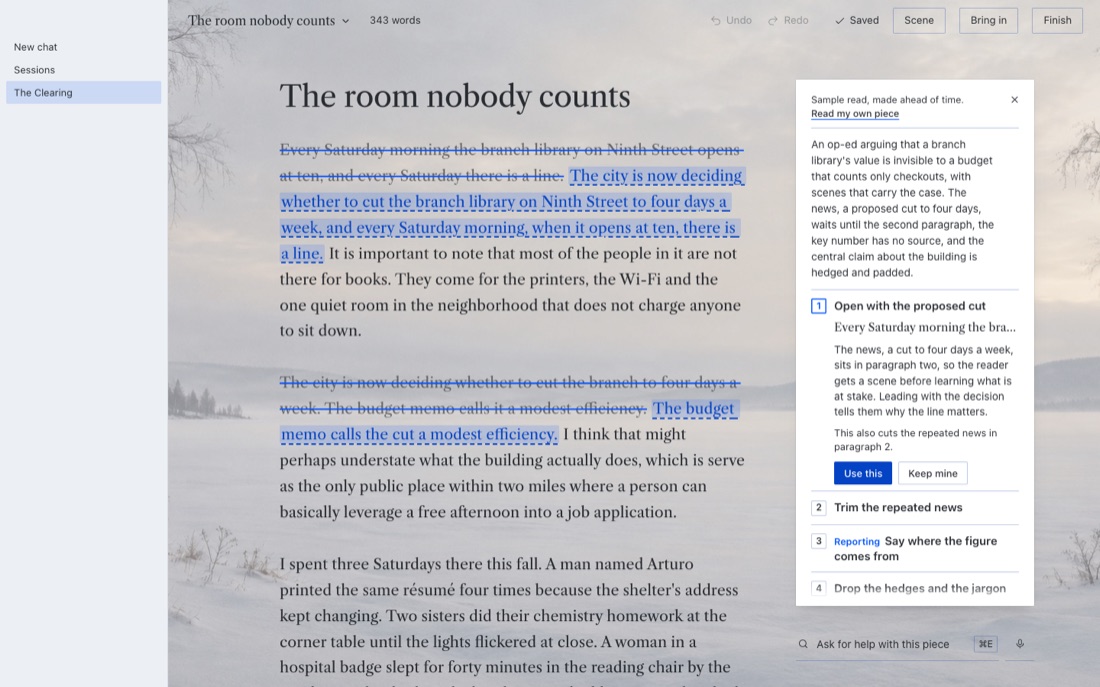
When you ask for help, the editor reads your words. The editor is the model you already use in Hermes. It points to one exact passage at a time, says what to change and why, and shows the change in your page. Your words get a line through them and the new version follows. Click Use this to keep it. Click Keep mine and nothing changes.
Undo takes a change back out, and History records which suggestions you used and which model wrote them. It is for anyone writing a report, essay, letter or speech who wants an editor's read and the last word on every change.
The editor can read your whole piece (Read my piece), mark the figures of speech you already use (Spot the figures), list the places where a technique would help (Find opportunities), rewrite one passage (One sentence at a time), or answer a request you type (Ask the editor). A library of passes and methods sits behind the Ask line (All methods). Two tools run without a model: Quick check and Other words.
What you need
- Hermes Desktop, version 0.21.6 or newer.
- A model set up in Hermes, for anything the editor does.
The Clearing uses your own Hermes model and account. It has been tried on macOS so far. Keys are given for Mac first, then for Windows and Linux.
Install, update, uninstall
Install it once, on the computer where Hermes runs. The ways that start in Hermes Desktop open a confirmation first, and nothing installs until you confirm.
- Click Install in Hermes Desktop. Hermes Desktop opens and shows where the plugin comes from and what it includes. Keep both parts selected, the agent plugin and the desktop plugin, and confirm.
- Or install from Git. In Hermes Desktop, click Capabilities, then Plugins, then Install from Git. Paste
https://github.com/Dgardenhire/hermes-clearingand confirm. - Turn it on. In Capabilities > Plugins, find The Clearing and switch it on.
- Click The Clearing in the sidebar. Or press Cmd K (Ctrl K) and choose Open The Clearing. The first time, a sample piece opens with a welcome card.
From the Hermes plugin catalog
Open Capabilities > Plugins, search the catalog for The Clearing, open it and click Install. In a terminal, run the line below. If the search finds nothing, the catalog doesn't list The Clearing yet. Use the button above.
--enable to switch it on without the question. To install from GitHub instead, use hermes plugins install Dgardenhire/hermes-clearing --enable.Updating
When a newer version is available, Capabilities > Plugins shows an Update button for it, and Update all updates every plugin that has one. Restart the gateway afterward so the new version loads. In a terminal, hermes plugins check-updates only looks, and hermes plugins update clearing applies the update.
Uninstall
Open Capabilities > Plugins and switch The Clearing off, or click Uninstall beside it. In a terminal, hermes plugins remove clearing does the same.
Uninstalling leaves your writing where it is, in plugin-data/clearing inside your Hermes folder, so installing again picks up where you left off. To erase it all, delete that folder after you uninstall. Files you exported to your own folders are not touched.
hermes plugins doctor clearing. It should say OK.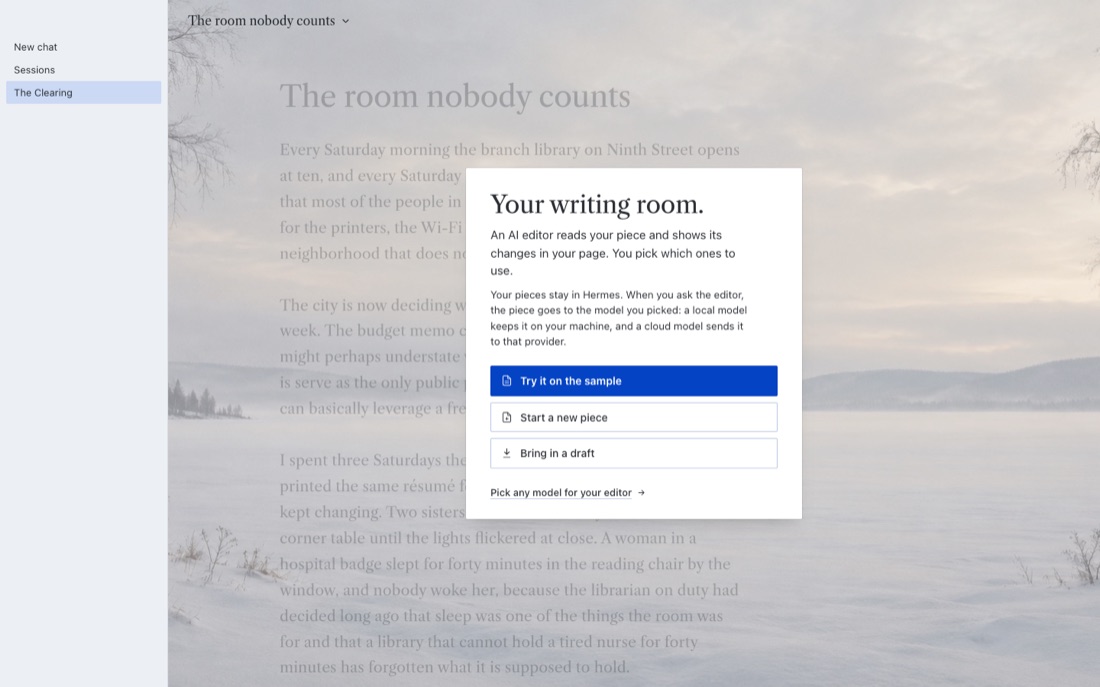
The room
Your words are set in a book typeface. Anything the editor writes is set in a plain sans, so you can always tell whose words are whose. The title is the top line of the page. Press Enter in the title to drop into the text.
The top line holds, left to right:
- The title. Click it for the title menu.
- The word count, and after you use a suggestion, your share of the piece, as in 88% your words.
- Undo and Redo, grey when there is nothing to undo or redo.
- Saved, Saving, Waiting to save or Not saved yet.
- Scene, Bring in and Finish.
The top line fades while you type and comes back when you stop or move the pointer. Escape closes a menu or sheet.
The desk
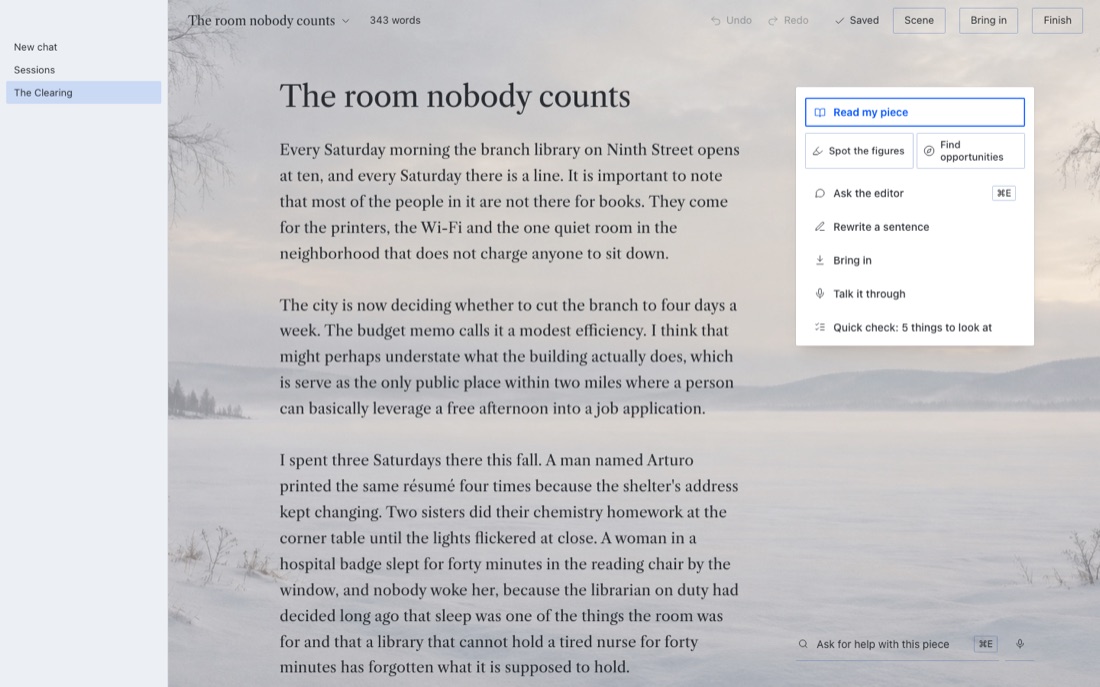
When no note is open, the margin shows the desk. Top to bottom:
Read my piece, Spot the figures and Find opportunities appear only when your piece is saved and The Clearing is on. In a narrow pane the desk becomes a bar of labeled buttons along the bottom, with Spot the figures and Find opportunities in a strip above it. Hermes's Cmd K palette also has Open The Clearing, Quick check this piece and Ask the editor.
Quick check
Quick check runs on your computer without a model. It marks throat-clearing, stock openings like "In today's rapidly changing world", stacked hedges, filler, stock phrases, "not X, it's Y" setups and long sentences. It leaves words inside quotation marks alone, because a quote isn't yours to edit, and the first note says how many spots it skipped. Its notes are questions. Keep anything that sounds like you. Each note has Edit it myself, Leave it and Done.
Scenes and reading settings
Click Scene, or choose The room in the title menu. Pick Snow Light, Quiet Marsh, Night Tide, a Plain page or Your own picture (a JPEG, PNG or WebP up to 6 MB; Change the picture swaps it and Remove it takes it away). The same sheet sets Text to Regular or Larger, Contrast to Standard or Stronger, and Suggested text to Shown or Off. Dark mode deepens the veil behind the page and keeps your picture.
The title menu
Click the title in the top line.
Your first suggestion
Every note sits beside the words it is about, and those words are underlined in your accent color. A note names one change and says why. Show me draws the change into your page the way a proofreader marks a page. Nothing is kept yet.
I think that might perhaps understate what the building actually does. That undersells what the building does.
- On the welcome card, click Try it on the sample. The sample piece opens with a read already in the margin, labeled "Sample read, made ahead of time." It was made ahead of time, so you can try the buttons without a model. Read my own piece runs a new one.
- Open the first change and click Show me. Your words are struck through and the editor's version follows, on a pale wash with a dashed underline.
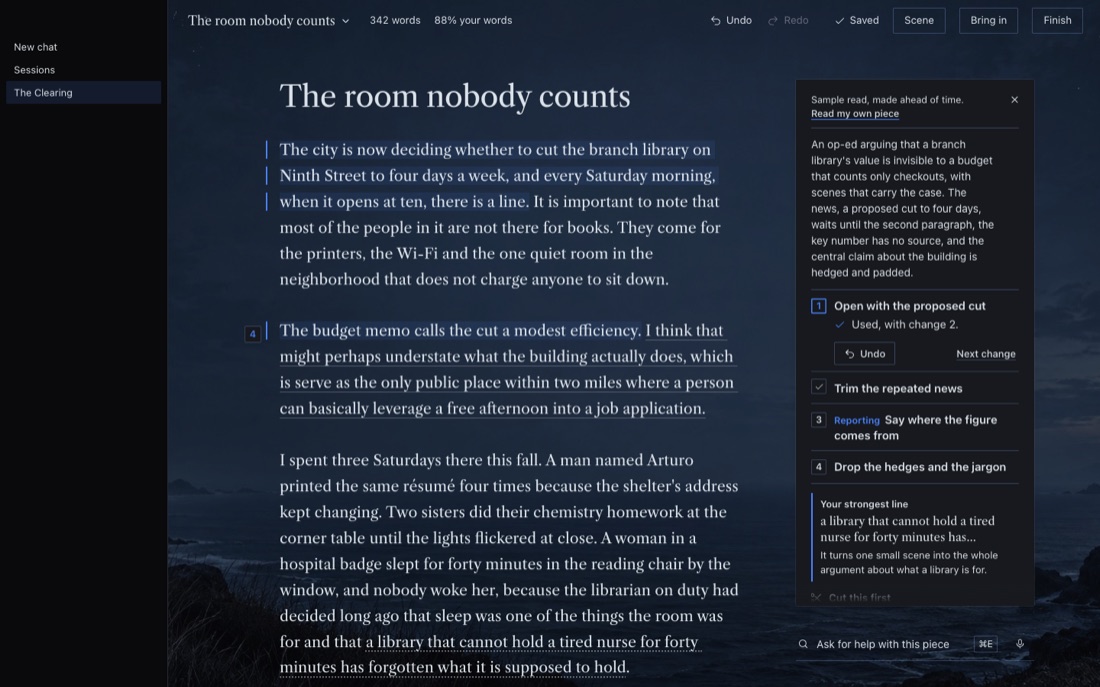
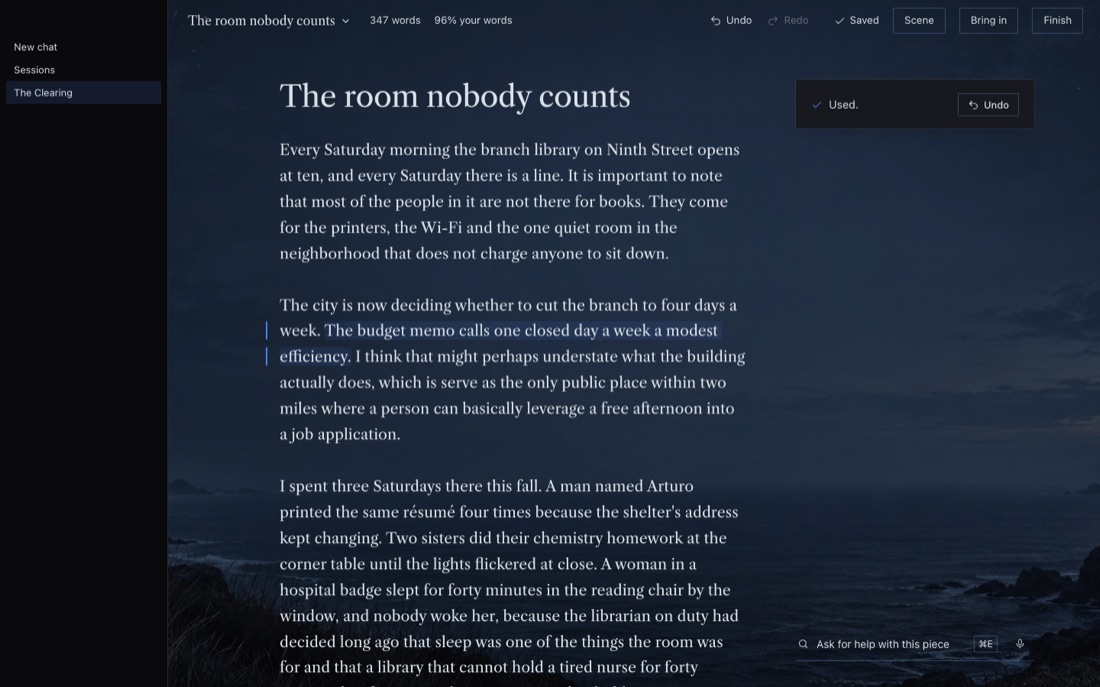
- Click Use this. The new words settle into your typeface with a thin tick in the margin, and the card says "Used." with an Undo button.
- Click Undo to take it back out.
A note from a pass can also show an Edit it myself link and, after Show me, a Change it link. A version of your page is saved before a suggestion goes in. If you rewrite a note's passage, that note is set aside. Every card your model wrote ends with "Suggested by your model". Point at it to see the model's name.
One sentence at a time
Select a sentence or paragraph with the pointer and a bar appears just above it with Rewrite, Tighten, Make it concrete and Ask. The editor then reads only that passage. The first three need Suggested text on. If you select a single word, the bar shows Other words instead of the first three.
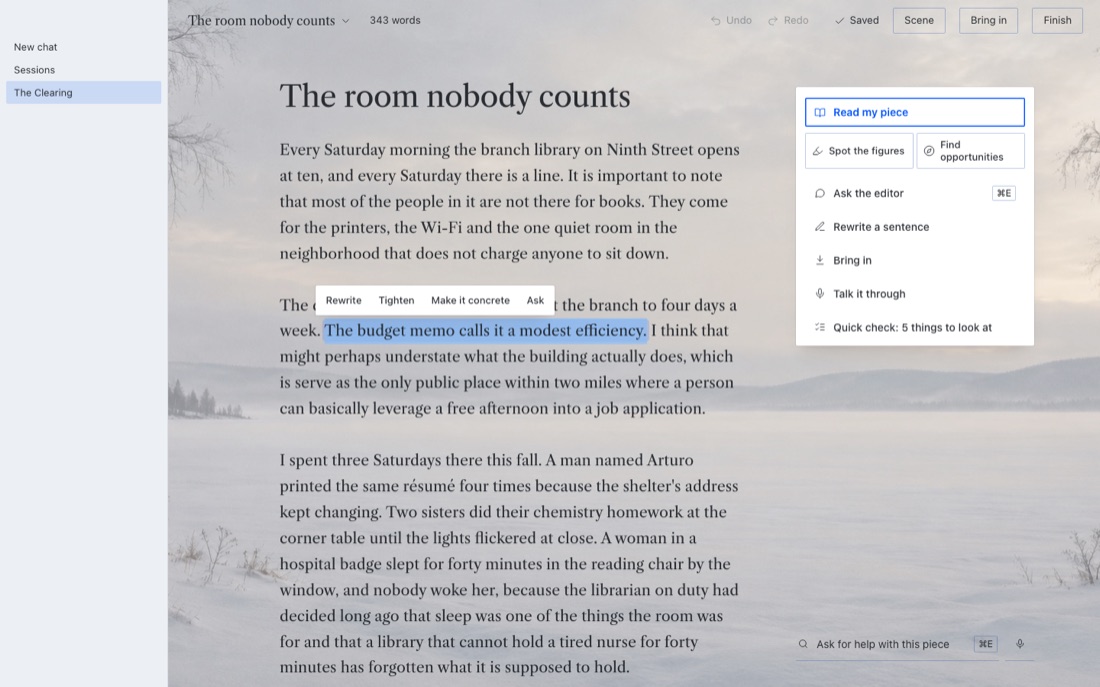
Rewrite
Rewrite gives three versions, A, B and C. They arrive one at a time, and the card counts "1 of 3 ready". Each is named for the move it makes. Click one to see it in your page. Then Use this puts it in, Keep mine leaves your words, and Edit it myself lets you change it first. Change it offers Shorter, Plainer, Keep my rhythm, a box for your own words, and Why?. A change asks for three new versions, and Back to the last options returns to the earlier ones. Why? answers in two or three plain sentences. Neither touches your page.
Other words
Double-click a word. A card opens under it with its meanings and other words, from a built-in English dictionary. It works without a model. Click a word to swap it in. Your original, and every word you tried, stay in the card. A Go back to button names your original word and puts it back. Suggest wording asks your model for four other ways to say it, under More like this from your editor, with a Dictionary senses link back. To get options for a phrase or sentence, select it and run Suggest wording from the Ask line. The card is then called Other wording and shows your model's options only.
A next sentence, endings and titles
Put the cursor where the next sentence should go and press Cmd E (Ctrl E). Suggest a next sentence is the first row. You get three ways it could go. Where it needs a fact you have not given, it leaves a blank in square brackets. Propose endings gives three last paragraphs built from what the piece already says. Title ideas gives five titles, each with what it promises the reader, and Use this title puts one in. Both are in the Ask line and in All methods.
Ask the editor
Press Cmd E (Ctrl E), or click the line that reads "Ask for help with this piece". Say what you want in plain words: "make the ending land harder", "where do readers get lost", "spelling", "the middle sags". Press Enter. Use the arrow keys to pick another row.
The first row is always Ask the editor with your words in quotation marks, sent as typed. With a selection you get three versions of that passage. Without one you get notes on your piece, each with Show me. The list below it finds library methods from plain words, like "nut graf" or "subtext". The last row, All methods, opens the whole library.
With nothing typed, the first rows follow your cursor: Rewrite, Tighten and Make it concrete for a selection, Other words for a word, Suggest a next sentence for a gap.
Read my piece
The first button on the desk. While it works, the card shows each step and a timer, and Stop ends it. A long piece is read in sections. The card counts them and lists the first notes while the rest are read.
When it is done, the card shows:
- The kind of piece it read, such as "Read as an op-ed", and a short verdict.
- Up to five changes, most important first. Open one for your words, why, and Show me. Your page underlines each one with a margin number. Reporting tags a question of fact or sourcing, not wording. Cut tags a change that deletes the passage.
- Your strongest line, the one the editor will not touch.
- A question to answer before you publish, when there is one.
- Cut this first, the one passage the editor would cut. Click it to see the cut struck through, then Use this or Keep mine.
If it finds only a few changes worth making, it says so and why.
To read the piece as three separate reviewers, a newcomer, a skeptic and a line editor, run Get several editorial perspectives from the Ask line or All methods. Where they agree shows passages more than one of them marked, and Let them argue it starts the next method.
Spot the figures
A figure of speech is a named pattern in how words are put together. A word repeated after a short break is diacope. Three parts that grow in weight are a tricolon. Spot the figures finds the ones your piece already uses and tells you whether each one works in that line. It marks your words and changes nothing.
Click Spot the figures, beside Read my piece on the desk. Your model reads the whole piece. Each figure it finds is underlined with a dotted line, and the first one opens in the margin. It marks up to twelve of the clearest, from a list of 44 figures.
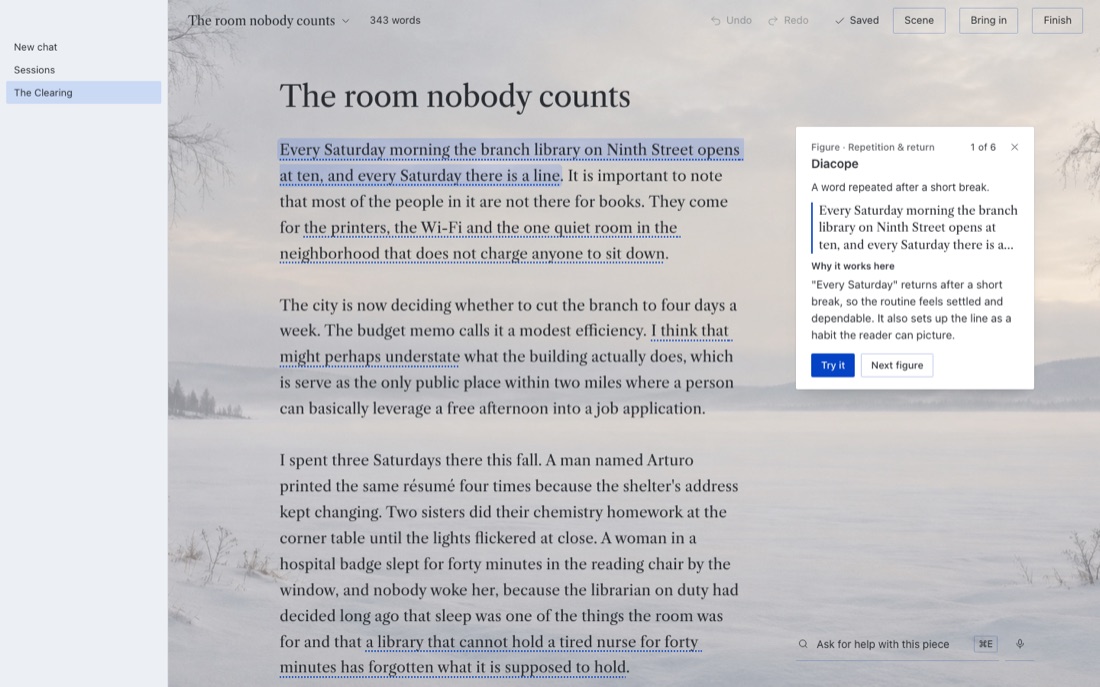
The card shows:
If the piece uses none of the figures on the list, the card says so. Run it again on the same words and the result opens at once. Change a word and it reads again.
Find opportunities
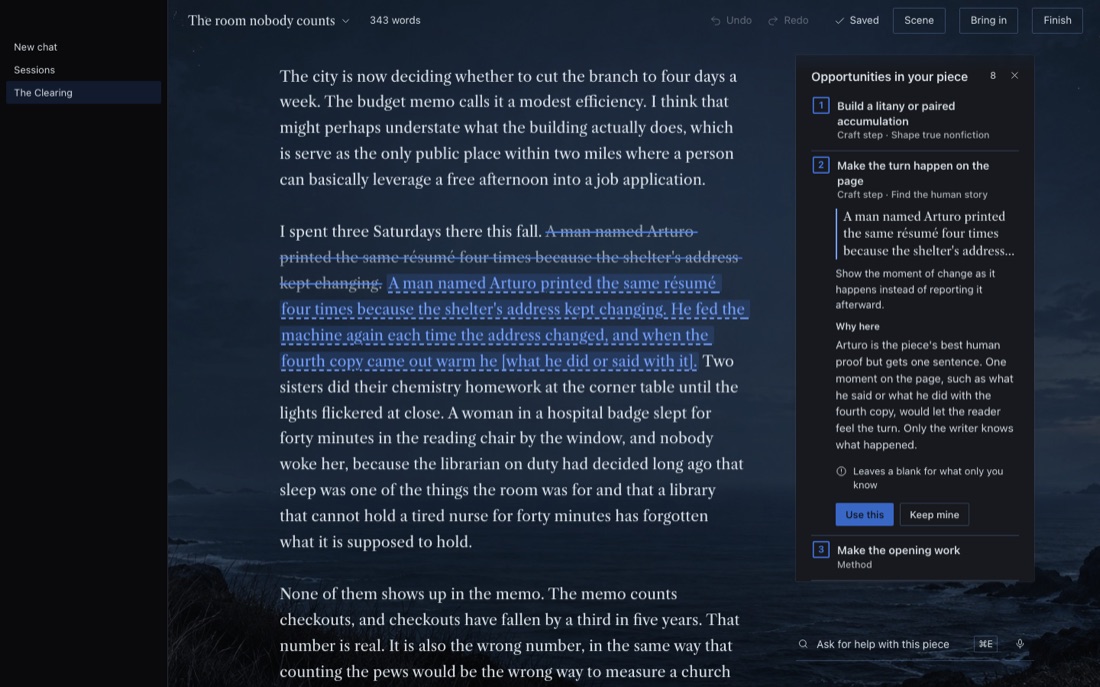
Where Spot the figures looks at what you did, Find opportunities looks at what you could add. Click Find opportunities, beside Read my piece. Your model reads the whole piece and lists the places where one item from the library would lift it: a person where the piece only asserts, a list that could build into a litany, a paragraph that wants a concrete example, a turn that should come sooner.
The card is called Opportunities in your piece. It lists up to eight, ranked with the biggest lift first, each with a number that also sits in the margin beside your words. Under each name is its kind: a figure (Figure · Balance, contrast & threes), a craft step (Craft step · Find the human story) or a method (Method).
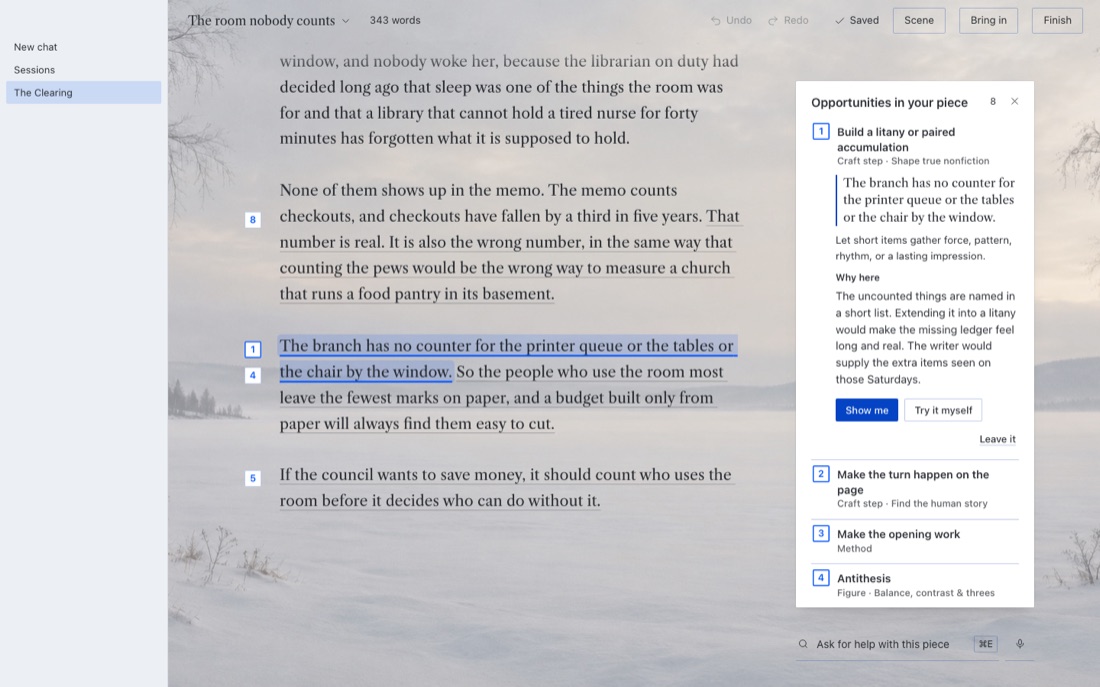
- Each library item appears once. At most one is a cut. The strongest line is left alone.
- The editor tries for a mix of figures, story items and structure items when your draft gives room for them.
- If you ran Spot the figures on the same words first, Find opportunities will not suggest a figure that is already there.
- With Suggested text Off, the card shows Try it myself and Leave it only.
- As with Spot the figures, running it again on the same words opens the result at once.
Editor passes
Passes are single jobs. Find them by typing what you want in the Ask line, or in All methods under Editor passes. Select a passage first and the pass reads only that passage, and the card's first line says "your selection". The passes that look at the whole piece, such as the openings and the main point, ignore a selection.
Nine Composition checks mark passages and ask a question. Keep any choice you made on purpose. They are: give each paragraph one job, choose active or passive on purpose, say it definitely and concretely, make every word earn its place, vary the sentence shapes, put parallel ideas in parallel form, keep related words together, hold the tense steady, and put the weight at the end.
All methods
Behind the Ask line is a library of methods. Open All methods in the title menu, at the foot of the Ask line, or on the About sheet. Click a group to open it, then click an item to run it. Select a passage first to run most of them on that passage only.
The groups, in order:
Most items return notes pinned to your words, like the other passes. Eight have their own screen:
- Turn material into a draft: your notes, selected or the whole page, become three drafts, A, B and C. Anything the notes don't give is listed beside the draft as a gap, and a number or quotation not in your notes is flagged. Keeping a draft saves your notes in History first.
- Check whether it sounds like you: needs at least one piece marked as a voice sample. Each note says Sounds like you, Drifts from your samples or Not enough to tell, and quotes the sample it rests on.
- Get several editorial perspectives: a newcomer, a skeptic and a line editor read the piece separately. Walk each one's notes. If one fails, the others still show.
- Let reviewers argue it through: starts from those reviews (it runs them first if needed), names the decision in front of you as a question, lets each side make its case and answer the other, then says what moved and what is still open. It ends with the one question left for you.
- Keep a lesson for next time: reads your own revisions to this piece and the suggestions you kept or skipped, and proposes a few narrow rules.
- Build your writing guidance: proposes rules from your voice samples, each with a quote from a sample. For both, Keep this rule after you edit it, or Skip.
- Set up a writing home: writes your guidance, voice samples and pieces into a folder of plain files. You see the plan first, then Set it up. Files already in the folder are left as they are. It works without a model.
- Find the piece across drafts: choose one to four other pieces. The editor reads them together and names the piece they are trying to become, with the passages that carry it, the gaps and the decisions left to you.
Bring in
Click Bring in in the top line, or on the desk.
Undo, History and Finish
Words from a suggestion keep a faint wash and a margin tick until you type inside them, and then they count as yours. The top line shows your share, as in "88% your words".
Undo and Redo in the top line step through your changes. One applied suggestion is one step, even a move and its trim, and typing is one step per burst. Cmd Z and Cmd Shift Z (Ctrl Z, and Ctrl Shift Z or Ctrl Y) and Hermes's Edit menu run the same history. After a used suggestion, the card also has its own Undo.
History, in the title menu, lists every saved version with what it changed, and marks the one that matches the page now. Restore brings one back, and the page as it is now is kept as a version first. Suggested text you used lists each suggestion you used and when. Point at a line to see which model wrote it.
Finish, top right, offers Copy as Markdown, Copy as plain text, Save as .md and Save as .txt (into a folder you choose), Save as Word (through Hermes's save dialog) and Mark this version finished, which keeps a version you can find in History.
Where your work is saved
Your pieces, versions, notes, kept rules and a record of the suggestions you kept or skipped are saved on your computer, in plugin-data/clearing inside your Hermes folder.
- Words save when you pause. A version is also kept after two idle minutes, before a change you keep, and at Finish. Past 200 versions of one piece, the oldest pause-saves are dropped.
- Move to trash only sets a piece aside; Trash brings it back. In the Trash, Delete forever (one piece) or Empty the trash (all of them) asks first, then removes the piece, its versions, its editor history and the suggestions you kept or skipped from the file. Rules you kept from it stay in Your guidance.
- When an editor pass fails, a short error note is saved there, without your words. You can delete it at any time.
- Your own scene picture sits in a
scenefolder there until you remove it. Scene and text choices, and unsaved words, live in Hermes's desktop plugin storage on this computer. - Set up a writing home writes plain files into a
homefolder there. - A copy of each Word file you save is kept in an
exportsfolder there.
Privacy
Here is everything that can leave your computer, and when.
- When you ask the editor for anything. The piece, or the passage you selected, its title and the rules in Your guidance go to the model you chose in Hermes, through Hermes. That is the model set as The Clearing editor, or your main Hermes model if you set none. A model on your own machine keeps the text there. A cloud model sends it to that provider. Hermes removes secrets, like keys and passwords, from the text first. If it can't, nothing is sent.
- What the editor tools send. Read my piece, Spot the figures and Find opportunities send the whole piece. The Try it coach sends the passage, your try, the piece's title and your kept rules, not the whole piece. The voice check, building your writing guidance and a next sentence also send the pieces you marked as voice samples. Finding the piece across drafts sends the pieces you choose.
- When you bring in a link. Hermes's web tool reads that page through the web backend you set up, so that backend sees the address. The Clearing first checks that the address is public.
- When you talk it through. The page records through your computer's microphone only after you click, and stops when you click again or at ten minutes. The recording goes once to the speech-to-text set up in Hermes. If that is a cloud service (OpenAI, Groq, Mistral, xAI, ElevenLabs or DeepInfra), The Clearing names it and waits for you to choose Send. The recording is kept only while it is turned into text, then deleted.
- When you click a credit link on the About screen, it opens in your browser.
Not sent to a model: Quick check, Other words, reading Word files and PDFs, your own scene picture, your writing home, and your pieces and history.
Nothing else leaves your computer. The Clearing collects no usage data and runs only while you use it.
What it costs. Each pass runs on your own model and account, at your provider's usual rates. Get several editorial perspectives costs as much as three passes. Let reviewers argue it through costs four, plus the three reviews if they have not run yet.
What it can't do
- The editor can be wrong. Every note points to words that are really in your piece. Whether the advice is good is for you to decide.
- A suggestion can still add things. The Clearing flags a number, name, quotation or count that your piece lacks ("Adds something your piece doesn't say:"). It holds back options that lean on a stock phrase, filler, a stacked hedge or throat-clearing, and names the habit when every option has one.
- Quick check matches patterns. It can't read meaning, so a long sentence that works is still marked as long.
- The page holds plain text. Word files and PDFs come in as words only. A scanned or locked PDF doesn't come in. A web page is read up to 200,000 characters, and added at your cursor up to 20,000.
- Other words is an English dictionary.
- Every pass needs your model to answer. A busy, slow or cut-off model gives a message, and the page stays as it was.
Turning suggestions off. Open Scene and set Suggested text to Off. The editor then points and asks but drafts no words: no rewrites, next sentences, openings, endings, titles or Show me. Quick check, Other words and the editor's notes still work. It suits a class that wants a room with no AI-written words.
Troubleshooting
The Clearing isn't in the sidebar
Open Capabilities > Plugins and switch The Clearing on. Restart Hermes. If it still doesn't show, run hermes plugins doctor clearing.
"Hermes doesn't have a model ready for The Clearing"
Click Open Settings and choose a model. Quick check and Other words work without one.
"Your model is busy", "Your model took too long to answer" or "The editor stopped before finishing"
Wait a minute and try again, or select one section and run the pass on that. "Hermes couldn't reach your model" means a lost connection to the provider.
"The editor's notes didn't match your words"
Every note was dropped because its words were not in your piece. Nothing changed. Try again.
"That passage changed while your model worked"
You edited the passage after asking. Nothing changed. Select it again and ask again.
"Suggested text is off for this room"
Open Scene and set Suggested text to Shown.
The banner says saving and the editor are off
Turn The Clearing on in Hermes's plugin settings. Words typed meanwhile stay on the page until saving works.
Talk it through is missing, or says it needs speech-to-text
Turn on voice in Hermes Settings > Voice. If the speech model has not been downloaded, use dictation once in a Hermes chat. On a Mac, if it cannot hear you, allow Hermes in System Settings > Privacy & Security > Microphone.
A link won't come in
Set up a web tool in Hermes Settings > Tools > Web. Only public pages come in.
"That PDF has no text to read"
It is probably a scan. Bring in a version with selectable text. A PDF locked with a password says so. Save an unlocked copy first.
The options say each one breaks a Quick check rule
Your model's suggestions all leaned on a stock phrase, filler or a hedge. Use one only if it still sounds like you, or ask again.
Credits
The Clearing is an independent plugin by Damon Gardenhire, not an official Nous Research plugin. It is free to use, including for paid writing work, under PolyForm Shield 1.0.0. The license does not allow using its code in a competing product.
- Nous Research, for Hermes Agent and Hermes Desktop. hermes-agent.nousresearch.com
- The Clearing applies 159 methods and techniques drawn from timeless editing and craft practice.
- Compound Writing, by Every (Katie Parrott): 33 of the methods are adapted from it. github.com/EveryInc/compound-writing
- Libre Caslon Text, by the Libre Caslon Text Project Authors, under the SIL Open Font License 1.1. github.com/thundernixon/Libre-Caslon
- Open English WordNet 2025 (CC BY 4.0, by the Open English WordNet team) and WordNet 3.1 (Copyright 2011 Princeton University), for Other words. en-word.net
Keep exploring
- Hermes Agent from Nous Research. hermes-agent.nousresearch.com
- The Hermes Bible, by iamlukethedev. hermesbible.com
- Hermes Atlas, by Kevin Simback. hermesatlas.com