What it is
Debate Workbench is a plugin, an add-on for Hermes Desktop, for practicing high school Lincoln-Douglas debate.
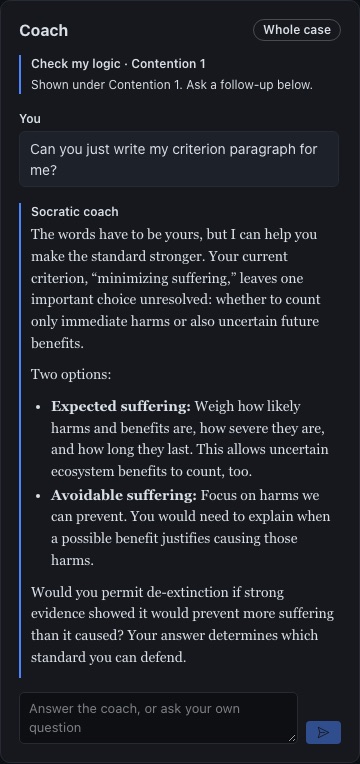
The student writes every word of the case. The coach reads it, finds the weak spot and asks the question that makes it stronger. It lays out options and points to where evidence lives. It does not write the case. Ask it to, and it says the words have to be yours and gives you the next step.
The coach and the AI opponent never make up quotes, numbers or sources.
It's for students, and for the parents and coaches who help them practice. A web version of the same workbench is at linchpin.studio/debate.
What you need
- Hermes Desktop, version 0.22 or newer.
- A model already set up in Hermes.
Debate Workbench uses your own Hermes model and your own keys. Nothing goes to LINCHPIN. There is no LINCHPIN account and no LINCHPIN server.
Install
Install it once, on the computer where Hermes runs. There are two ways in, and both open the same confirmation box in Hermes Desktop. Nothing installs until you confirm.
- Click Install in Hermes Desktop. Hermes Desktop opens and shows where the plugin comes from and what it includes. Keep both parts selected, the agent plugin and the desktop plugin, and confirm.
- Or install from Git. In Hermes Desktop, click Capabilities, then Plugins, then Install from Git. Paste
https://github.com/Dgardenhire/hermes-ld-workbenchand confirm. - Turn it on. In Capabilities > Plugins, find Debate Workbench and switch it on.
- Click Debate in the sidebar.
hermes plugins doctor ld-workbench. It should say OK.The three pages
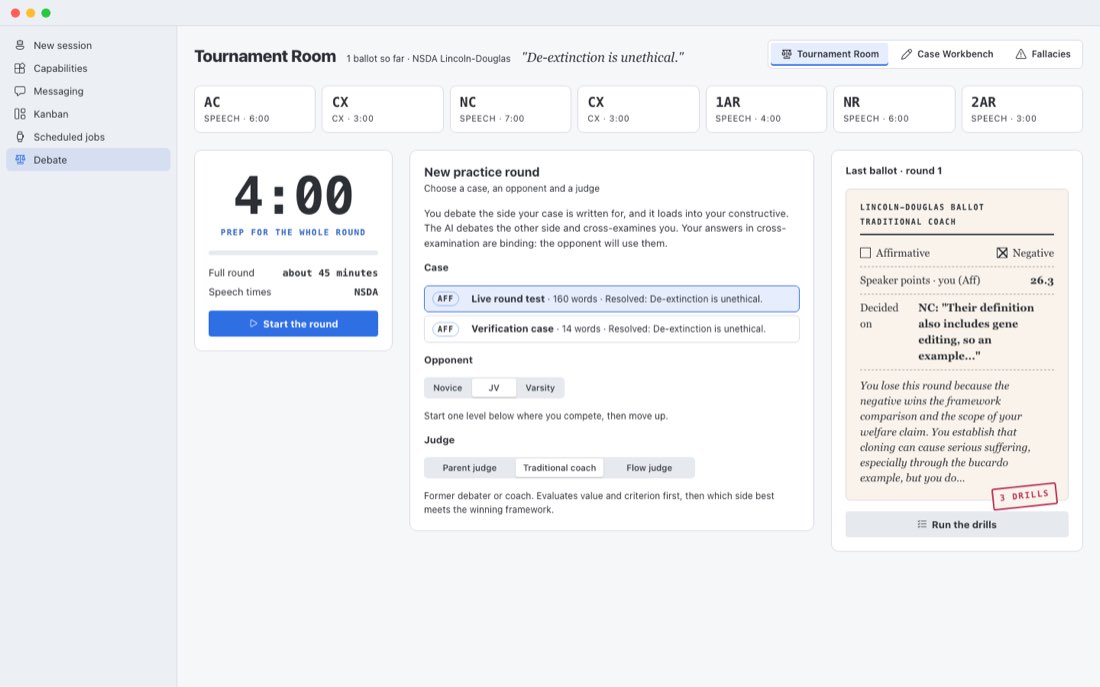
Debate has three pages. Switch between them with the buttons at the top right.
Writing a case
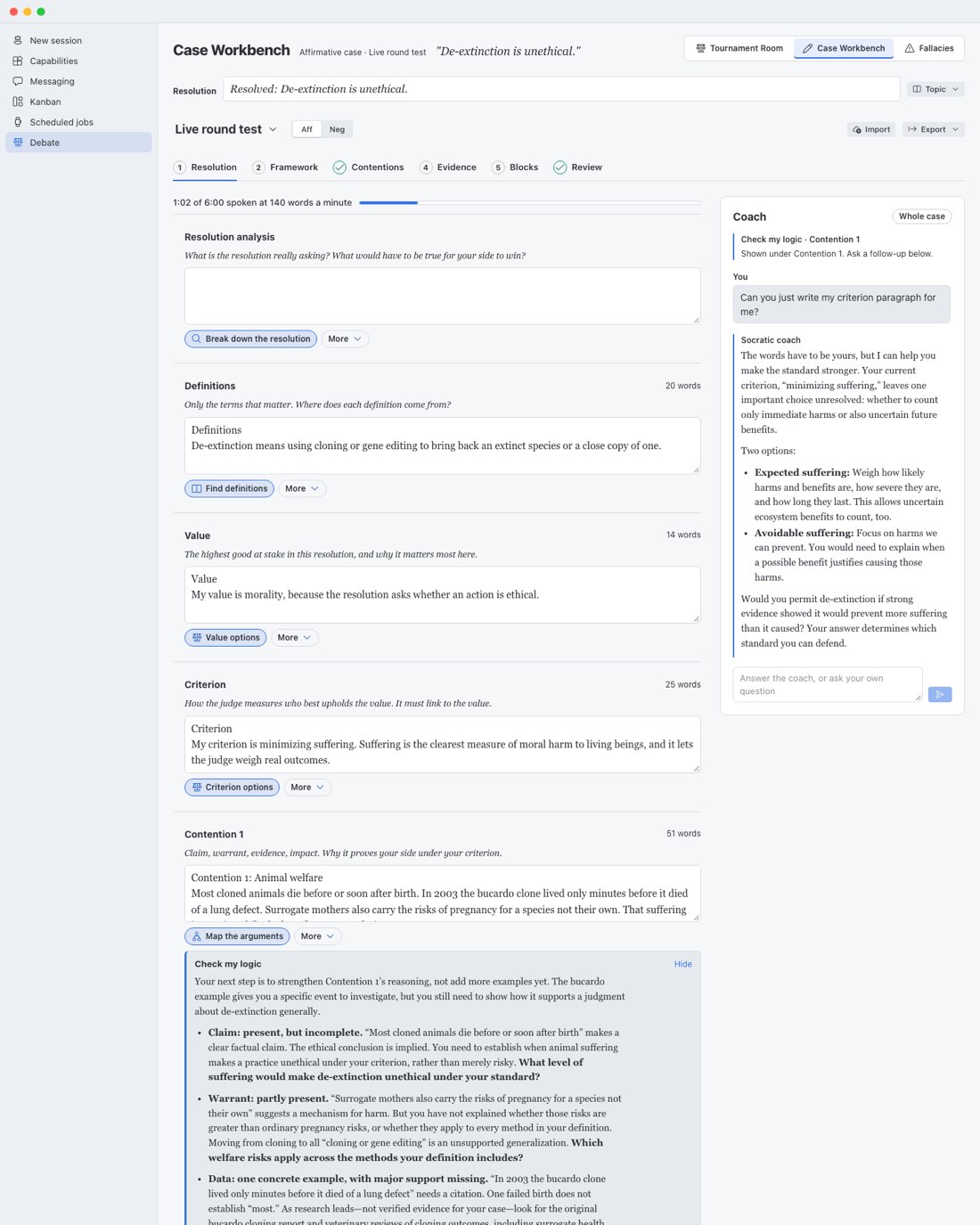
A case is your written argument for one side of the resolution. The Case Workbench splits it into sections: resolution analysis, definitions, value, criterion, up to three contentions, and blocks. Anything that doesn't fit goes in Other material.
The resolution
Type the resolution you were given, or open Topic and choose Use the current NSDA topic. For November and December 2026 that is "Resolved: De-extinction is unethical."
Under Topic you can also add a topic source. Paste a topic analysis or a handout from your coach, or read a public page from a link. The coaching tools read it as background. The opponent does not.
The first time you use a new resolution, a topic briefing opens above your case. It maps the topic for both sides: the background, the words that matter, what each side has to prove, the arguments you'll hear most, common values and criteria, what judges look for, and where to start reading. Facts it is not sure of are marked "check this", so check them. Click Got it to close it, Briefing to open it again, Redo for a fresh one, or Print to print it.
The writing path
Six steps across the top take you from a blank page to a finished case. A step shows a check mark when its sections are filled in.
- Resolution. What the resolution asks, and what each key word means.
- Framework. Your value and the criterion that measures it.
- Contentions. Two or three reasons, each with a claim, a warrant and an impact.
- Evidence. Where to look, and what will survive a challenge.
- Blocks. The attacks coming, and your answers.
- Review. A full review of the case, then a practice round.
A bar above the sections shows how long your case takes to read aloud at 140 words a minute.
The helpers in each section
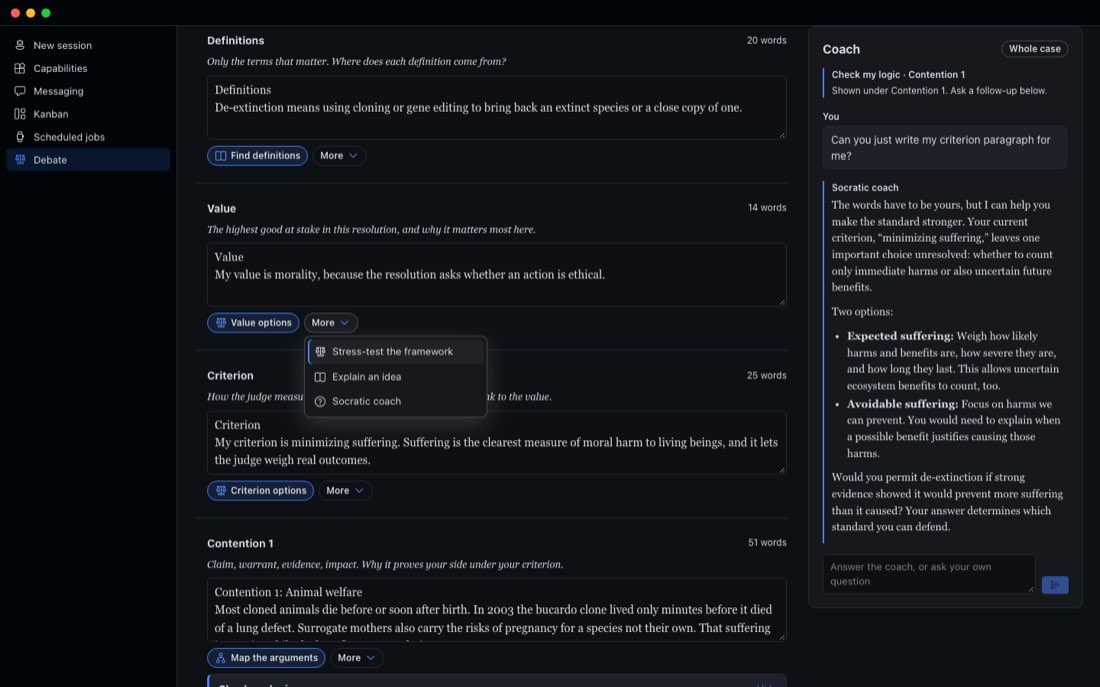
Each section has one main helper button. More holds the rest. The answer shows under the section, and the conversation continues in the coach panel, where you can answer the coach or ask your own question.
Your cases
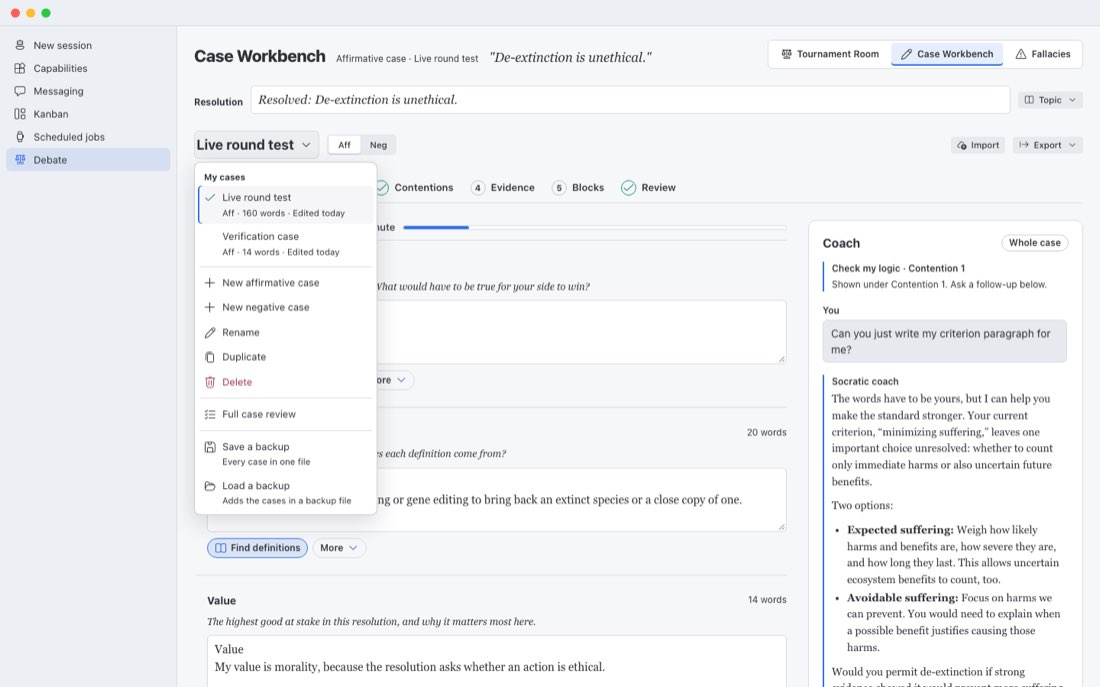
Keep as many cases as you want. Click the case name at the top to switch cases. The same menu lets you start a new affirmative or negative case, rename, duplicate or delete a case, run a full case review, and save or load a backup.
Import
Already wrote a case? Click Import. Paste it, or upload a Word document or a text file up to 2 MB. It becomes a new case, sorted into sections without changing a single word. If it can't be sorted without changing words, it all goes into Other material and you move each part yourself. Then the coach reviews it.
Export
Click Export to save the case as a Word document or a text file, or to open a print view.
A practice round
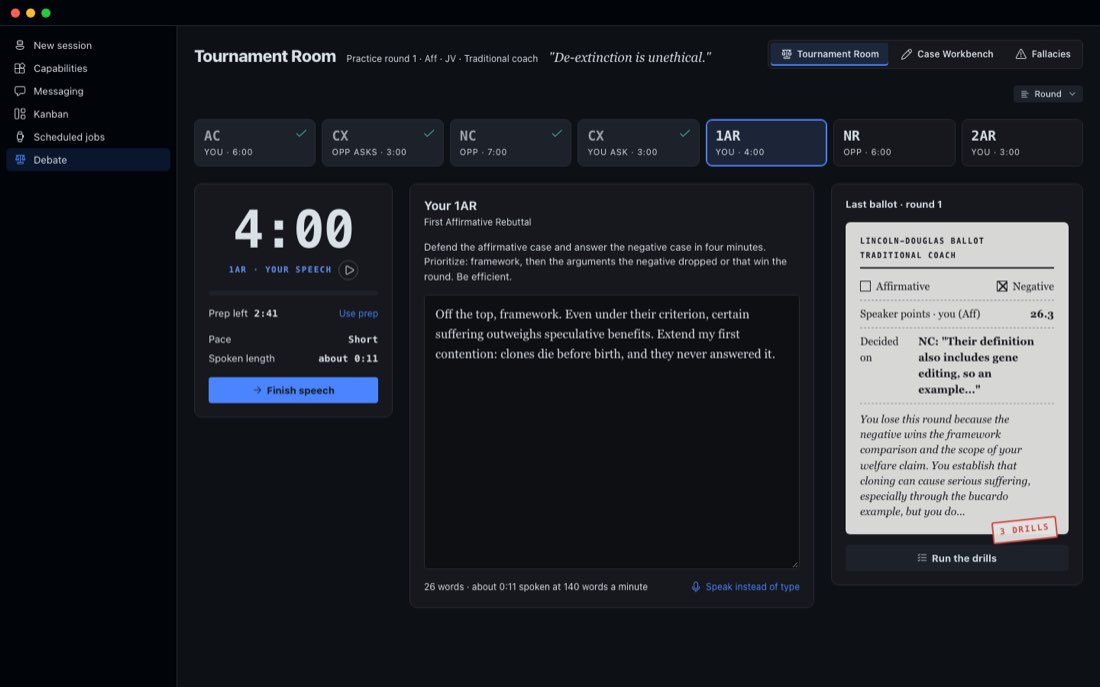
In the Tournament Room, choose a case, an opponent and a judge, then press Start the round. You debate the side your case is written for, and your case loads into your constructive. The AI debates the other side.
Speech order and times
The round follows NSDA order and times. A full round takes about 45 minutes.
Each side also gets 4 minutes of prep time for the whole round.
The clock and prep
- The clock shows the time for the current speech. Press the small play button on it to start or pause.
- Use prep starts your prep time and Stop prep stops it. Prep only goes down.
- As you type a speech, the page shows the word count and about how long it takes to say. Press Finish speech when you're done.
Cross-examination
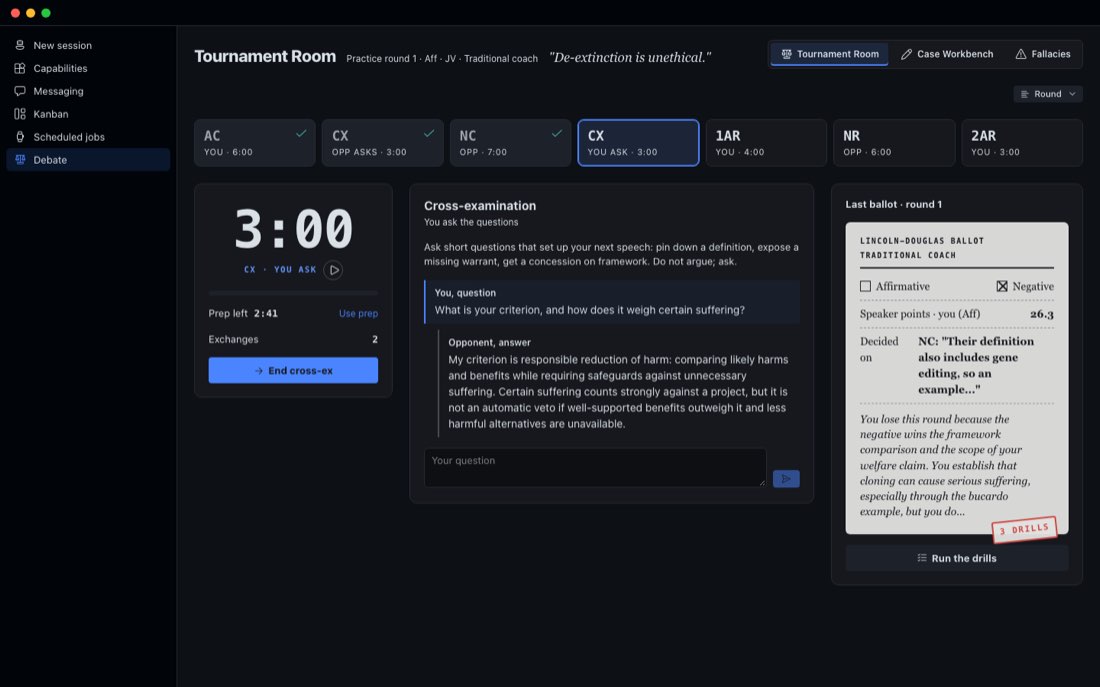
Cross-examination is one short question or answer at a time. When you ask, aim to pin down a definition, expose a missing warrant or get a concession. When you answer, answer honestly and briefly. Your answers count, and the opponent will use them. Press End cross-ex to move on.
The flow
The flow is the debater's running notes of every argument. It fills in as each speech is given. Open Round and choose Show the flow to see it. The same menu has End this round, which clears the round.
The ballot
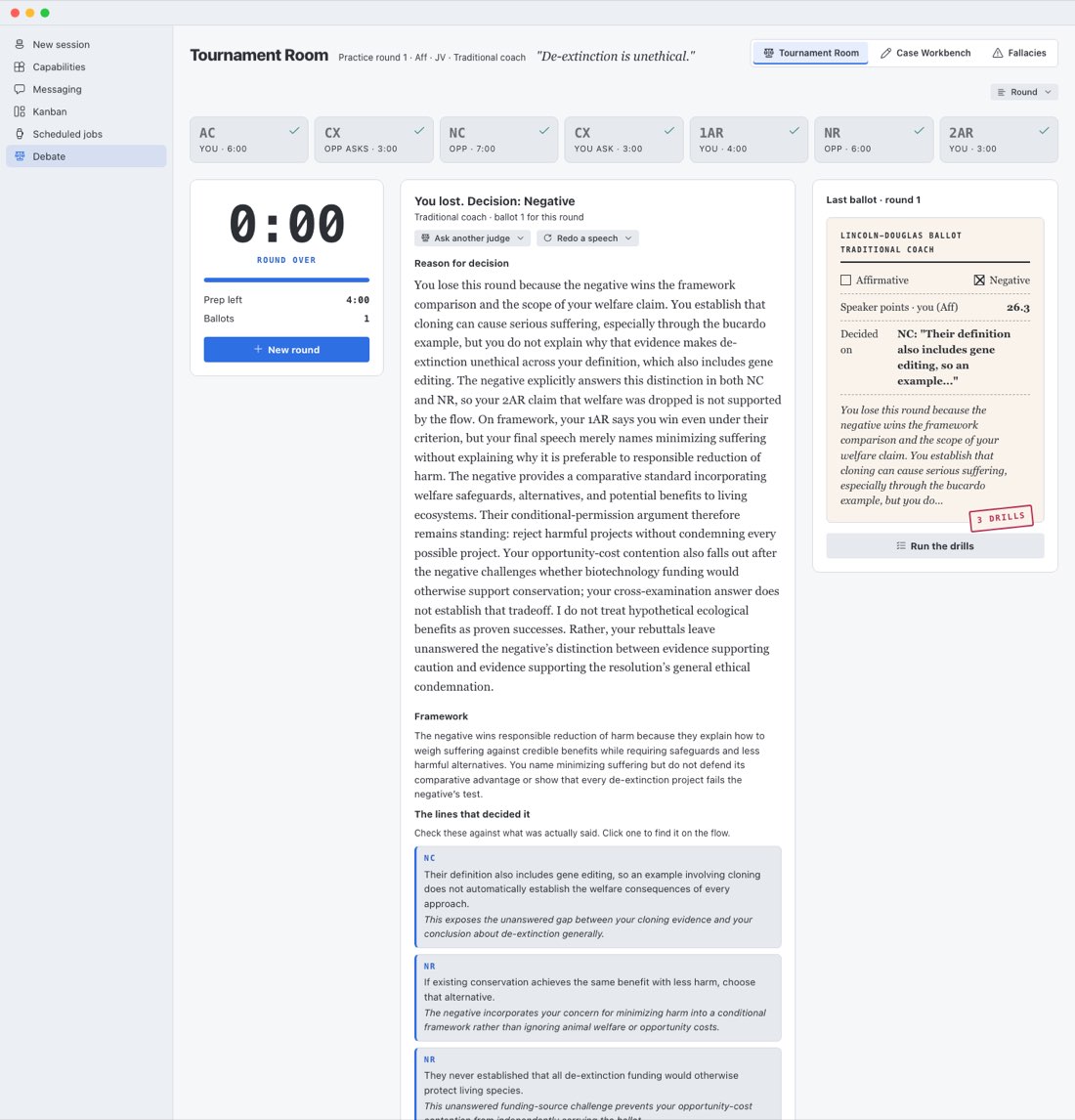
After the last speech, the judge writes the ballot. It has:
- The decision and speaker points.
- The reason for the decision, written to you.
- Who won the framework, and why.
- The lines that decided it. Two to four arguments, each from a speech that really happened. Click one to find it on the flow and check it against what was said.
- What worked, and whether you owned your case under questioning.
- Three drills, each tied to a moment in the round, with how to practice it in 10 to 15 minutes. Run the drills opens them from the last ballot.
After the ballot
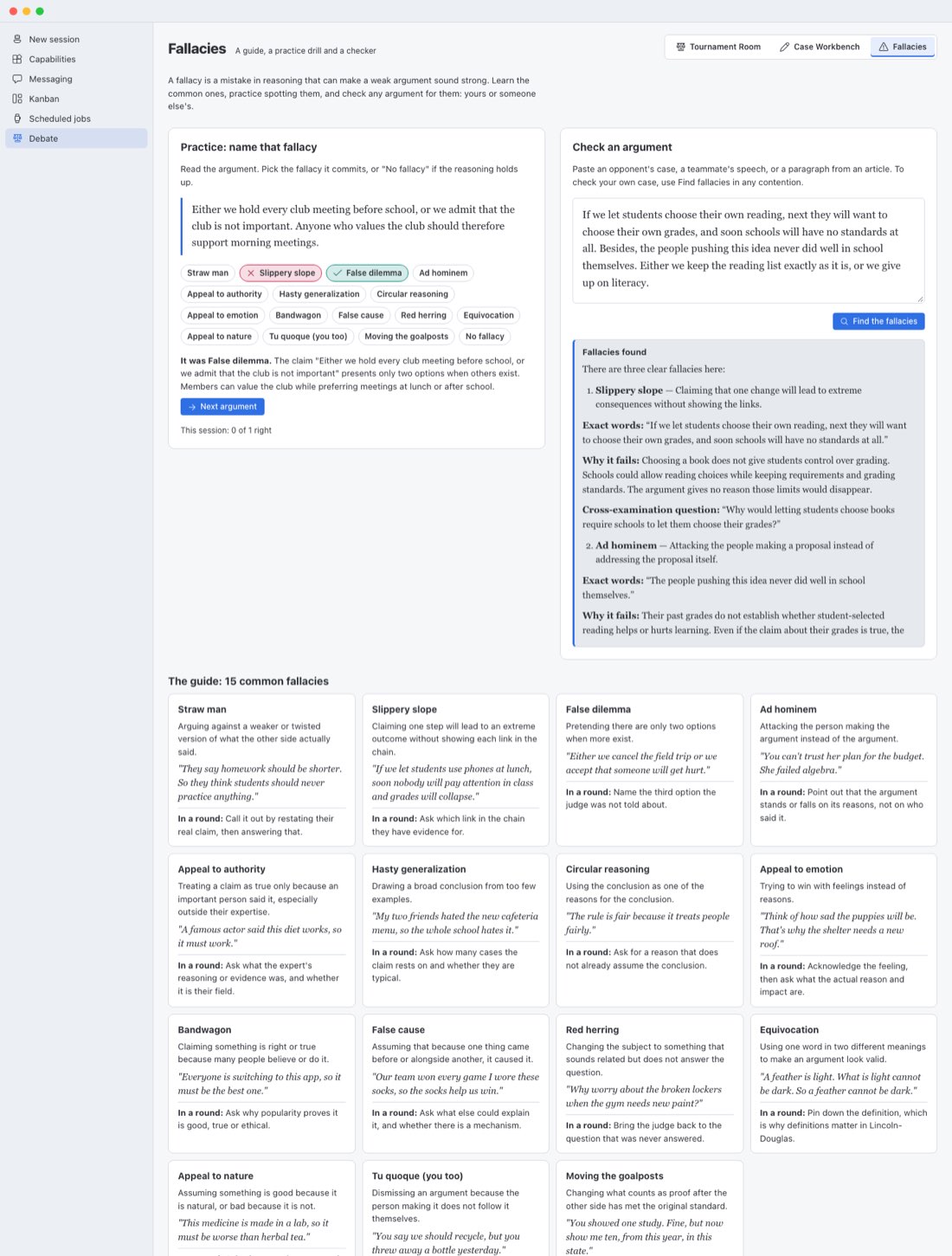
Fallacies
A fallacy is a mistake in reasoning that can make a weak argument sound strong. The Fallacies page has three parts.
Fallacies show up in the other two pages too. In the Case Workbench, Find fallacies is under More in each contention. In the Tournament Room, a Spot fallacies button sits under every speech the opponent gives.
Where your work is saved
Your cases, coach notes, rounds and ballots are saved on your own computer, in the Hermes data folder, in a folder named plugin-data/ld-workbench inside your Hermes folder.
To keep a copy or move to another computer, open the case menu and choose Save a backup. It saves every case in one file. On the other computer, choose Load a backup. It adds the cases from the file.
Privacy and the rules
Debate Workbench runs on the model you set up in Hermes. Your case and your speeches go to that model, through Hermes, when you ask for help or debate a round. Only two other things ever leave your computer:
- If you add a topic source from a link, it opens that one public web page to read its text.
- The Speak instead of type button uses the speech recognition built into Hermes. Depending on your computer, that service may send your audio to its maker (for example Google) to turn it into text. If you never press it, nothing is recorded.
Nothing else is sent anywhere.
Under the NSDA High School Unified Manual, text from an AI tool cannot be cited as a source. The original source of any quote or paraphrase must be available if someone asks for it. Research leads point you to where evidence lives. Find it and cite it yourself.
Debate Workbench is a practice tool. The AI opponent and judges are practice partners, not real tournament results.
Troubleshooting
Debate isn't in the sidebar
Open Capabilities > Plugins and check that Debate Workbench is switched on. Then restart Hermes. If it still doesn't show, run hermes plugins doctor ld-workbench.
Answers are slow
Speed depends on the model you set up in Hermes. A faster model answers faster.
A step failed
If the opponent or the judge can't finish, the page says so and offers to try again. Check that your model is working in a regular Hermes chat.
Credits
Debate Workbench is an independent plugin developed by Damon Gardenhire. It is not an official plugin for Hermes made by Nous Research.
- Nous Research, for Hermes Agent and Hermes Desktop. hermes-agent.nousresearch.com
- The National Speech & Debate Association, for the resolution and the speech order and times. speechanddebate.org/topics
Keep exploring
- The web version, the same workbench in a browser. linchpin.studio/debate
- Hermes Agent from Nous Research. hermes-agent.nousresearch.com
- The Hermes Bible, by iamlukethedev. hermesbible.com
- Hermes Atlas, by Kevin Simback. hermesatlas.com