What it is
Letterpress is a plugin, an add-on for Hermes Desktop. It is a notebook where your own documents are the only source of facts.
You add reports, Word files, PDFs, transcripts, web pages or pasted notes. You ask questions, and each answer carries numbered marks that open the passage it came from. When you are ready, you make a deck, a one-pager, a graphic or an audio brief. Letterpress sets it in a brand, which is a saved set of colors, fonts, a logo and voice rules. You can use one of five studio brands, or bring your own.
Every number in what Letterpress makes is traced to a sentence in your sources. A number it cannot find is flagged, and Export waits until you fix it or keep it on purpose. The writing and the checking use the model you already set up in Hermes.
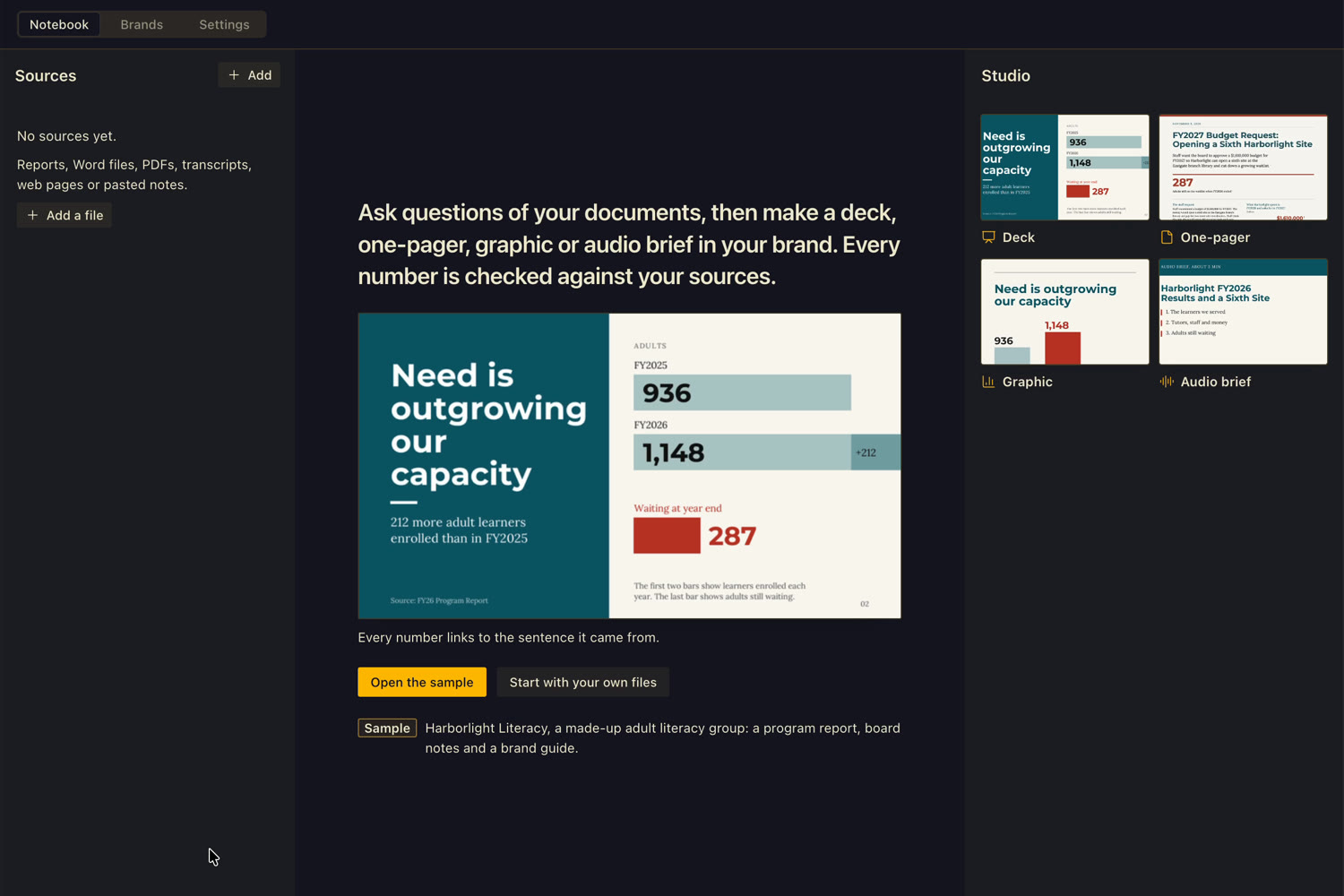
The pictures here use the sample notebook that comes with Letterpress: Harborlight Literacy, a made-up adult literacy group.
What you need
- Hermes Desktop, version 0.22.6 or newer.
- A model already set up in Hermes. Letterpress uses it for every summary, answer, outline, deck and script.
- A browser Letterpress can draw with: Google Chrome, Chromium, Microsoft Edge or Brave. Letterpress uses it for the three designs, for exporting a designed piece to PDF or PNG, and for looking at a website you build a brand from. It opens the browser by itself, out of sight. Looking at a website works on a Mac and on Linux; on Windows, Letterpress still reads the site's colors and fonts. Everything else in Letterpress works without a browser.
- A voice set up in Hermes (text-to-speech), only if you want the audio brief recorded. The script is made either way.
Letterpress uses these Python libraries to read and write files: pypdf, python-docx, python-pptx, reportlab and Pillow. Hermes lists them and asks before it installs them.
Install
Install it once, on the computer where Hermes runs. Nothing installs until you confirm in Hermes Desktop.
- Click Install in Hermes Desktop. Hermes Desktop shows where the plugin comes from and the libraries it needs. Confirm.
- Or install from Git. In Hermes Desktop, click Capabilities, then Plugins, then Install from Git. Paste
https://github.com/Dgardenhire/hermes-letterpressand confirm. - Turn it on. In Capabilities > Plugins, find Letterpress and switch it on.
- Click Letterpress in the left sidebar.
Finding your way
Letterpress has three tabs across the top: Notebook, Brands and Settings.
The Notebook has three panes, left to right. Sources holds your documents. Ask in the middle is a chat about them. Studio on the right is where you pick a brand and make things. When you open something large, such as a deck, it takes over the window and Sources and Ask fold into a thin bar on the left. Click Sources or Ask on that bar to slide either one back over the page. The same fold happens when the window is narrow.
On first open, Open the sample loads Harborlight Literacy: a program report, board notes and a brand guide. A Sample label and Close the sample sit at the top right while it is open. The sample is read-only, so the Add button is hidden until you close it. Start with your own files opens the file picker.
Adding sources
Click Add at the top of the Sources pane. It offers three choices.
For audio or video, add its transcript. Some files are refused with a reason and a way forward: a scanned PDF with no text layer, a password-protected PDF, an old .doc file, an empty file or one over 25 MB.
Each source becomes a card with its title, its kind and its size in pages, paragraphs or lines. Then your model writes a short summary under it. Click the summary to read all of it. If it fails, Try again asks once more.
Tick what counts. The box on each card turns the source on or off. Ask answers only from ticked sources, and everything you make is built only from them. Once some sources are off, Use every source turns them all back on.
Read a source. Click a card's title and the pane shows every passage with its place: a page, a heading or a timestamp. All sources goes back. A very long source shows its first 800 passages here.
Asking questions
The middle pane starts with a short read of your ticked sources, written by your model: what they say, what they seem to ask for, and questions people may raise. Numbered marks in it open the passages behind it. If you change which sources are ticked, a link offers to read them again.
Under it, a list headed like Your sources ask for three things shows work the documents seem to call for, such as a deck for the board. Each has a Make button that opens the Make form already filled in. Questions people may ask (or Questions the board may ask) lists questions marked Suggested. Click one to ask it.
To ask your own, type in the box that reads Ask about your sources. Enter sends, and Shift+Enter starts a new line. While it works, the pane shows which sources are being read and how many seconds have passed.
An answer
The first sentence leads, in bold. Small numbered marks sit in the text. Click one and the left pane opens that passage. Every mark points to a real passage in a ticked source. The line under the answer, for example 2 sources, unfolds to name each source and its place. It also says if a source has been switched off since.
Along the bottom of an answer:
Every answer ends with a line saying it was written by your Hermes model. Clear the chat deletes the conversation after a second click. Notes you pinned stay.
If nothing is ticked, Ask says so: No source is ticked. Tick one on the left, then ask again.
Making something
The Studio shows four tiles with a small preview of each in the current brand: Deck, One-pager, Graphic and Audio brief. Once you have made something, the tiles shrink to a row of small buttons above the list of what you made. The brand name and its color bar sit at the top of the Studio. Click it to choose another brand (see Brands).
Click a tile and the middle pane turns into a form with four fields.
The button says Write the outline for a deck, and Make the one-pager, Make the graphic or Make the audio brief for the others. A line beside it names how many sources it will use.
The deck outline
A deck pauses at an outline you can change before anything is drawn. The first row is the title slide and is fixed. Every other row is a slide title, with its type (Title, Points, Chart, One number, Quote, Side by side, Timeline, Section or Close) and small links to the source passages it rests on. Click a row to see what you can do with it.
Build starts the deck. Change the brief goes back. While it builds, you see each step with the seconds it took, the outline ticking off slide by slide, and a Stop button. A stopped build says Stopped. Your outline is kept. and offers Retry and Back to the outline.
What each one makes
Notes, at the foot of the Studio, holds pinned answers and anything you add with Add a note, then Keep the note. A note has a Make a graphic button and an x to remove it. When you make a one-pager or an audio brief from an answer with Make from this, and you pinned that answer, its note goes into the brief as a point to lead with. Facts still come only from the sources.
Everything you make is listed under Made in the Studio with its date and time. Click one to open it. While something is building, the Studio lists it under Making with its steps.
How numbers are checked
Letterpress writes from passages of your sources. Then it checks each number it wrote against those passages. A number can come out in one of these states:
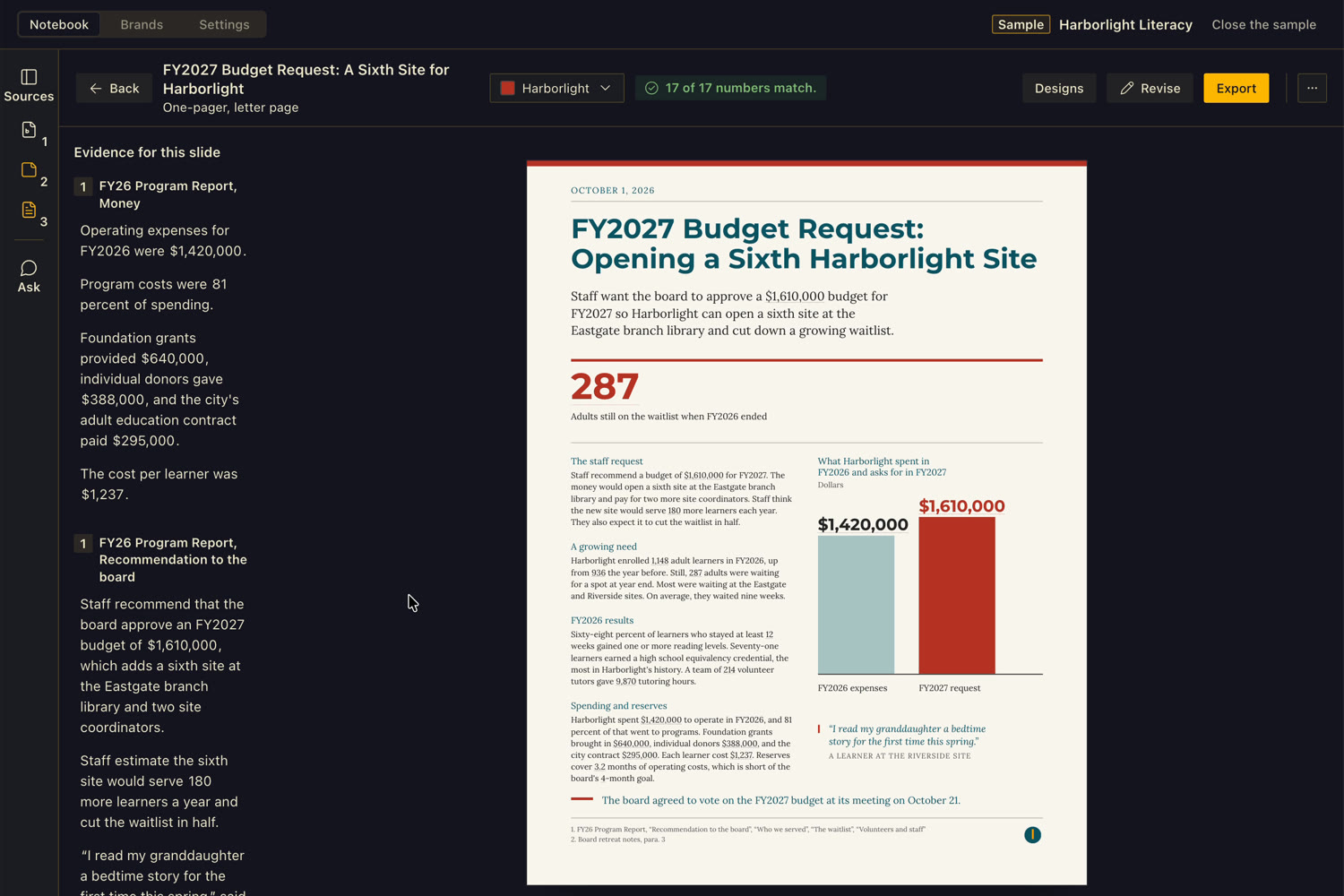
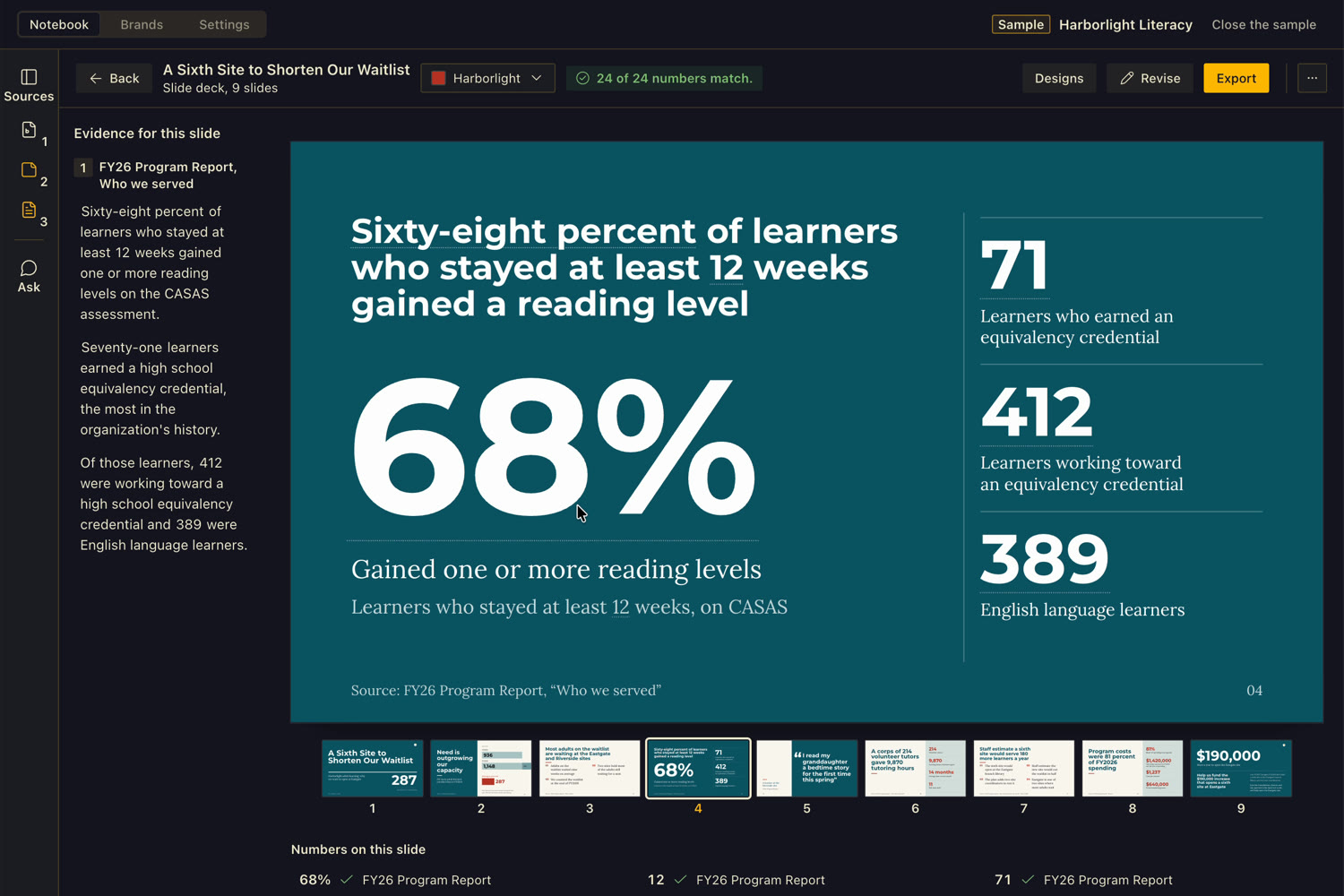
At the top of an open deck, one-pager or graphic, a sentence sums it up, such as 24 of 24 numbers match. Below each slide, Numbers on this slide lists each figure with the source it came from. Hover a number, or Tab to it, and a card shows the source sentence with the number marked, the source's name and its place. On the left, Evidence for this slide shows the sentences themselves. Click one to see which slides use it.
Quoted phrases are checked the same way as numbers.
When a number is not found
The sentence at the top turns red and names the number, for example 1 number isn't in your sources. The Revise button shows a red count. Open it and each flagged number appears with the closest sentence Letterpress found. You have two ways forward.
Until every flagged number is fixed or kept, Export stays held. Hover it to see why: Fix or keep the numbers that aren't in your sources first. In the audio brief's detail list, the same choices are Fix the wording, Remove it and Keep it, I checked.
On the standard version of a deck or one-pager, a bare year or a day of the month needs no source.
The check shows that a number is in your sources. Whether the source is right is up to you.
Three designs
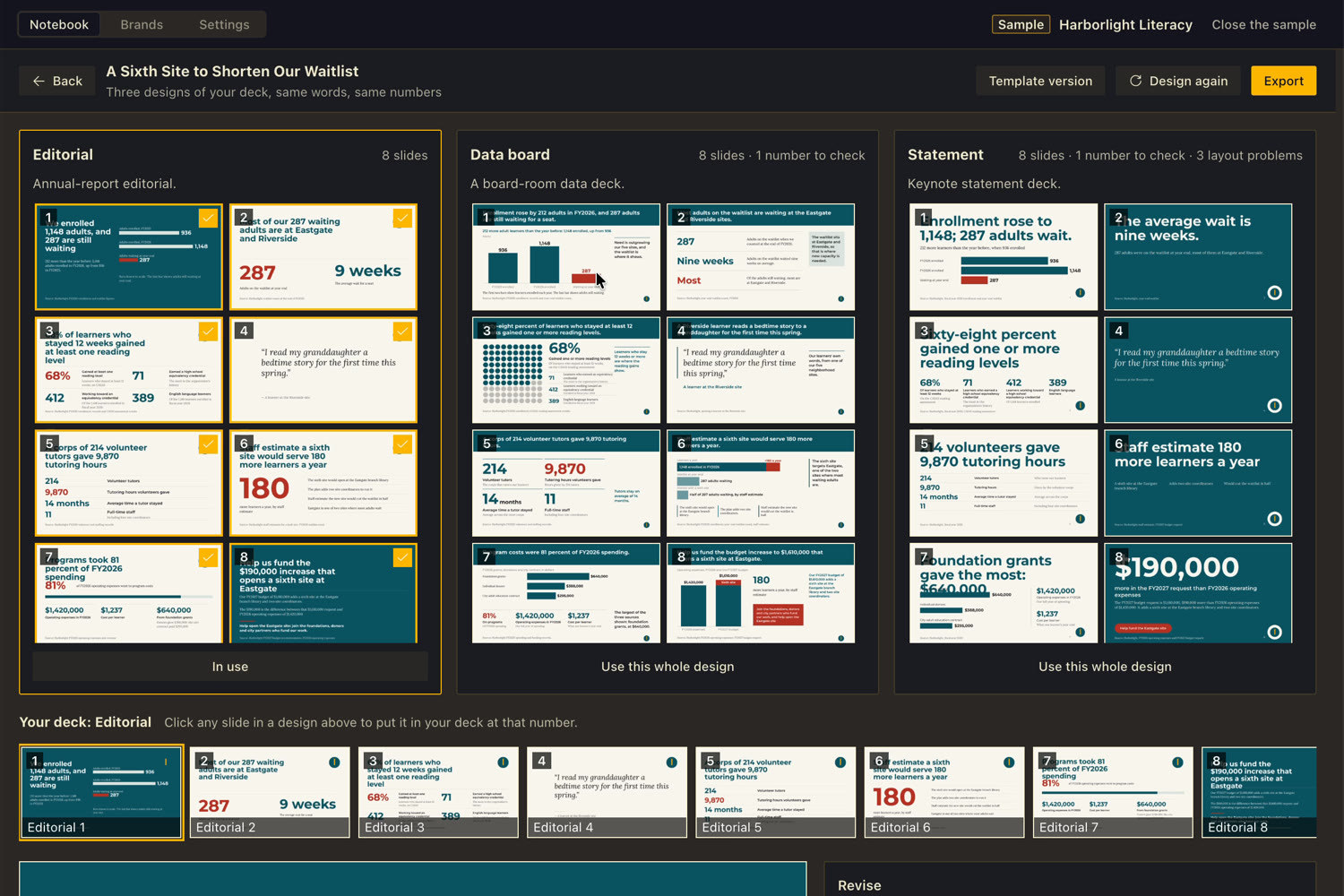
When a deck, one-pager or graphic is finished, Letterpress opens a screen called Designs and starts drawing it three ways. Your model lays out each one, looks at a picture of what it drew, and fixes what is wrong. The screen is titled with the name of your piece.
The three have names. Editorial is an annual-report look. Data board is a board-room data deck. Statement is a keynote look with big type. Each card shows how many slides it has, how many numbers still need a check, and how many layout problems Letterpress measured, such as text that overlaps or runs off the slide. If one design fails, the other two still arrive.
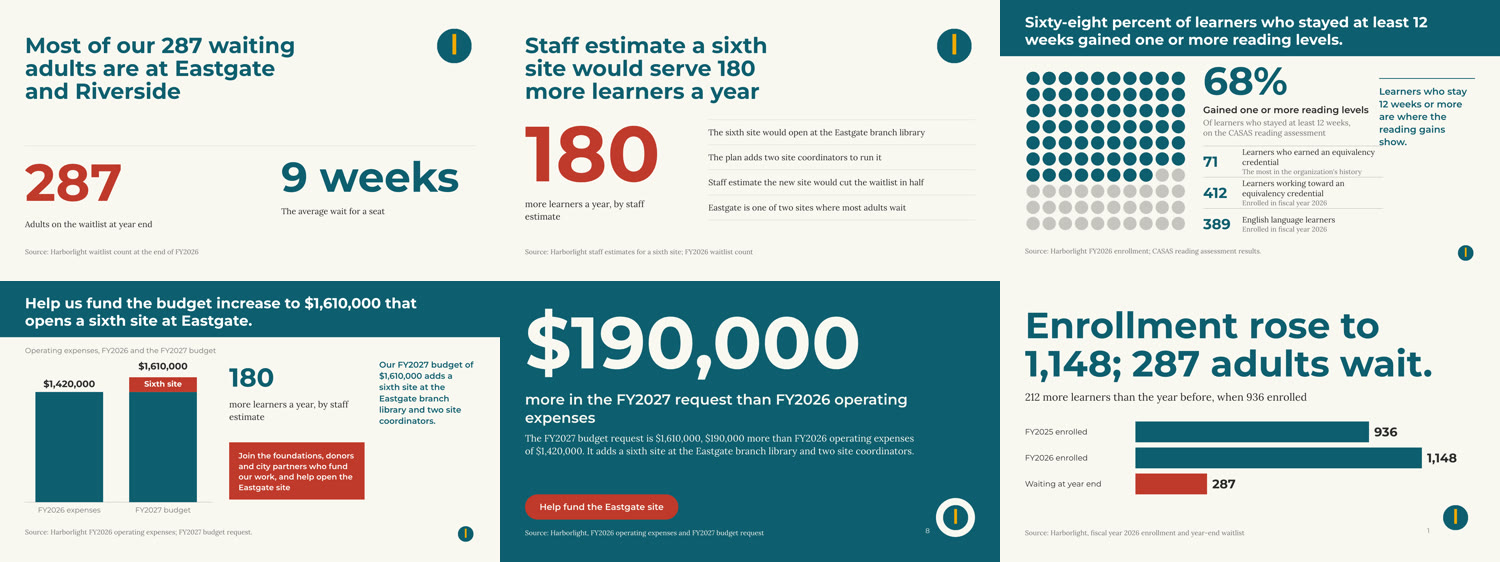
All three use the same words and the same traced numbers. Your brand supplies the colors, fonts, logo and voice. Its page layout and density are a starting point. If you captured a style brief for the brand, the designs follow that. The only picture on a designed slide is your logo.
Pick, mix and change
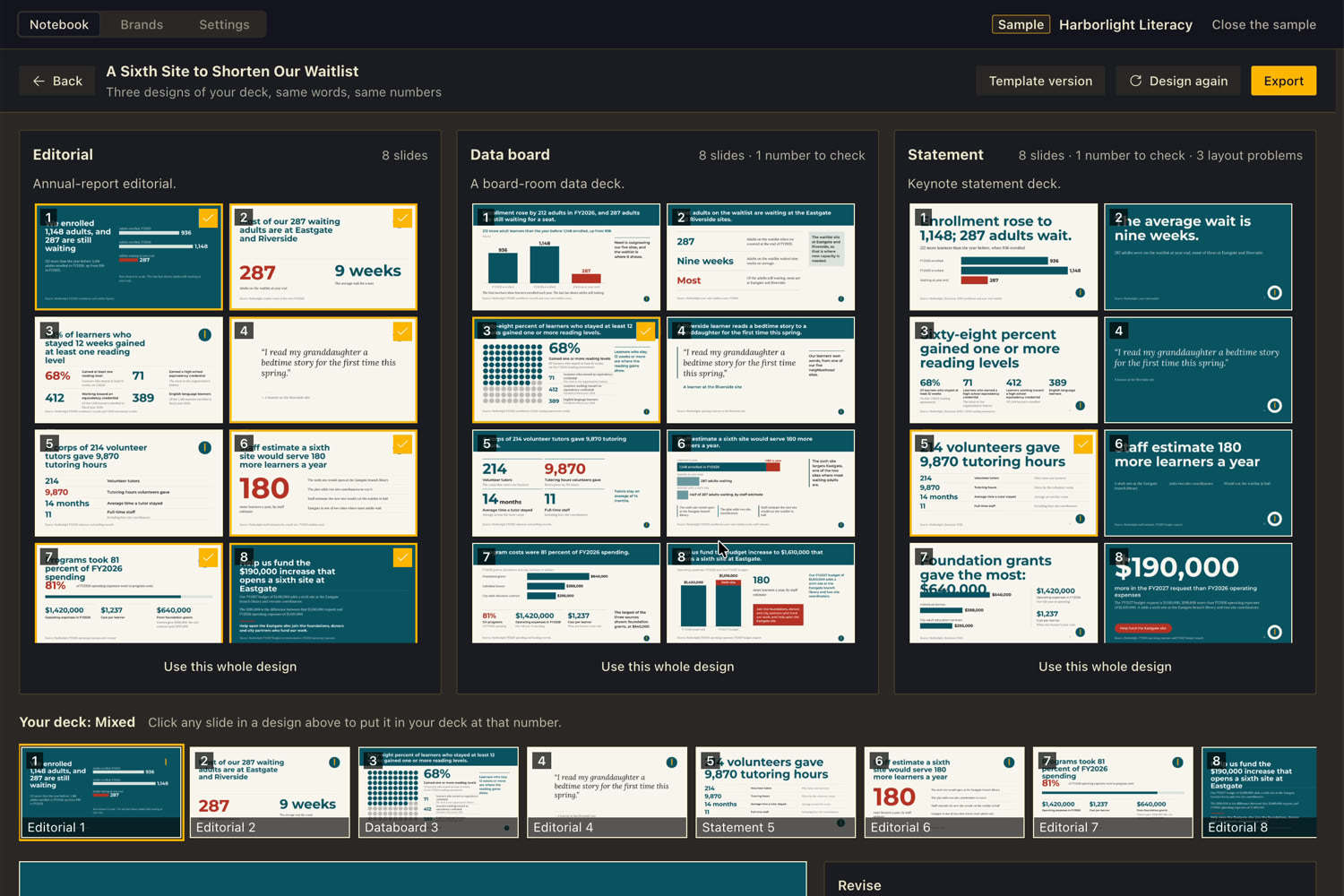
The same number check runs on every design. In a designed slide, a number counts wherever it shows up: in text, in a chart label, on a chart bar, or written as a word. Each must name the passages it comes from and be found in them, or be worked out from two numbers in them. A flag reads isn't in your sources, doesn't name its source or is cited to the wrong source (and says where it really is). Export waits until each flagged number is fixed or kept.
If you want the plain, fixed layouts instead, press Template version at the top of the screen.
For a one-pager or a graphic, each design is a single picture, and the button reads Use this design.
The standard version
Besides the three designs, every deck, one-pager and graphic has a standard version, where Letterpress sets your content in the brand's own fixed layouts. Template version opens it. Designs, at the top of the standard version, goes back. A finished piece opens here from the Studio's Made list.
The top row has Back, the title, the brand menu, the number check, Designs, Undo (once you have changed something), Revise, Export and a More menu with the delete option. Choosing another brand in the menu sets the same piece in that brand and rewords it in that brand's voice, keeping every fact.
Changing a slide
Click a slide. A small bar appears above it. Four actions are on offer.
In the Revise panel, under Ask for a change, you can type a request and press Send. Letterpress can make a slide shorter or stronger, turn it into a chart, or add one slide. For anything else, it shows that list. Every option shows a check. If nothing new passes the check against your sources, the slide stays as it was and Letterpress says so. Discard throws an option away, and Undo reverses the last kept change.
Brands
A brand is the thing that makes your work look like yours. It holds colors with a role each (head, accent, accent2, band, fill, highlight or rule), the fonts for headings and body, a logo, voice rules, a page layout and rules for every page. Letterpress measures each color against the paper and tells you what it may be used for. A brand color too pale for text is kept to rules and fills.
The Brands tab shows three groups. Your brands are the ones you made or saved. Studio brands are five that ship with Letterpress, shown by their own slides. Earlier starters opens a list of 16 more. Choose Use in the Studio on any of them and it becomes the brand for your next make.
A studio brand or earlier starter cannot be edited in place. Press Save as my copy to get your own to change.
Four ways to start your own
Four buttons sit at the top of the Brands tab. In every case you see a draft, drawn as a full proof, before anything is saved. Press Save the brand to keep it, or Discard. A saved brand becomes the Studio's brand.
After an import, colors that were left out are listed under Skipped, and some have Add it back. If you picked a logo from the files found, Use this logo chooses it. You always pick the logo yourself. Required lines are left for you to add under Every page.
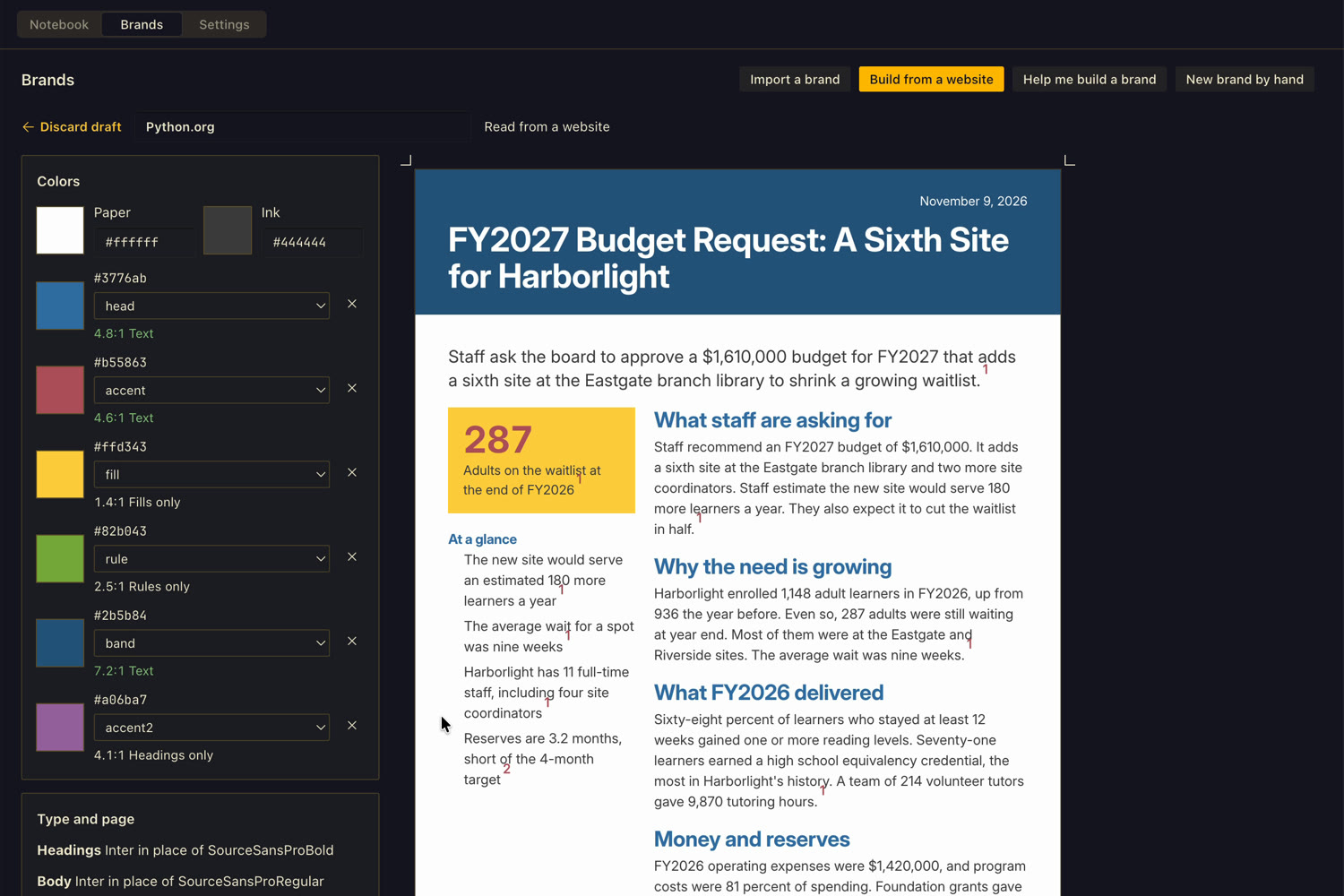
The bench
Click a brand to open its bench. It shows What it makes, the brand's slides and graphic on a sample, redrawn as you edit. The sections are:
Use a brand only for an organization you own or have permission to use.
Exporting
Press Export, pick a format and your computer's save dialog opens. The file goes where you choose. What is on offer depends on which version you are exporting.
The note "Set in ..." and the brand's color bar print only on the Proof PDF with crop marks. If the PowerPoint is opened on a computer without the brand's fonts, PowerPoint substitutes its own. The PDF keeps the brand's fonts, so send it along if you are unsure.
Source notes is a page to hand out with the deck: every number and quote beside the sentence in your sources it came from, with the source's name and section, grouped by slide. A figure worked out from two others shows the sum, and a figure you kept on purpose says so. It needs Chrome, Chromium, Edge or Brave on your computer.
The audio brief
An audio brief is a script for one narrator: short sentences, signposts and a recap, with a heading for each part. It opens in its own simple viewer. At the top you see Back, the title, the brand menu, Export and a More menu. A sentence about the numbers sits under them. Details next to it opens the rest of the checks: sources, contrast, never-say words, required lines, logo, fonts and length.
When you press Make the audio brief, Letterpress writes the script and then records it through your own Hermes text-to-speech voice. A player appears with play, a position bar with one tick for each chapter, and the time. Its title reads Chapter N of M with the chapter's name, and the script marks the part being read. Record again makes a new recording.
The brand's delivery notes, for example "Plain, steady, unhurried", go to the voice as instructions along with a general note to read it as a briefing for one listener, carefully, number by number. Some voices, such as OpenAI's, follow them. Others may ignore them.
If no voice is set up in Hermes, the script is still made. You see Not recorded yet. The script is ready to read or export. with a Record it button. Turn on text-to-speech in Hermes Settings, then press it. If a recording takes too long, Letterpress stops and offers Record again.
The Length check reads the script at 150 words a minute and compares it to the length you asked for.
How long things take
How long each step takes depends on your model and your computer.
- Summaries, answers and the guide start the moment you add or ask, and show the seconds that have passed.
- A make shows every step with its seconds. You can press Stop.
- Three designs take longer than one. Your model lays the piece out three ways at the same time, and each one is checked and fixed. How long that takes depends on the model you use.
You can leave the screen while the designs draw. The Studio shows a Designing card with the current step and an Open button. Work keeps going if you reload the window. If Hermes restarts, a job comes back as stopped with Retry.
Settings and your data
The Settings tab lists every source and every output with a delete button. A first click on Delete turns it into Click again to delete. Under Model use it shows how many tokens Letterpress has used today on your own model, with an optional daily limit. When the limit is used up, Letterpress says so and stops asking the model until tomorrow or until you raise it. Storage shows the size of Letterpress's folder and how many sources, brands and outputs it holds. To erase everything, type forget everything and press Forget everything. That deletes every source, brand, output and setting.
Letterpress saves your work on the computer that runs Hermes, in plugin-data/letterpress inside your Hermes folder: sources, passages, brands, outputs, recordings and settings, in one folder with a database. An export is saved only where you pick in the save dialog. The folder also holds a short error log, without anything you wrote.
If you use Hermes from another computer, your work is saved there, not on this one.
Uninstall
- If you want your Letterpress data gone too, first open the Settings tab, type forget everything and press Forget everything. That deletes the
plugin-data/letterpressfolder: sources, brands, made pieces, recordings and settings. Files you exported are yours and stay where you saved them. - Remove the plugin. In Hermes Desktop, open Capabilities, then Plugins, press the trash button beside Letterpress and confirm. Or, in a terminal:
hermes plugins remove letterpress. Restart the gateway to unload its code. - Removing the plugin does not delete its data folder. If you skipped step 1, delete
plugin-data/letterpressinside your Hermes folder yourself. The Python libraries installed with Letterpress stay, since other plugins may use them.
Privacy
Letterpress collects no usage data and does nothing until you press a button. These are the only ways anything leaves your computer.
- Your AI model. The text of your ticked sources (with secrets redacted by Hermes), your questions, your brief and your notes go to the model you set in Hermes. If that model is a cloud service, the text goes to it. That includes summaries, answers, outlines, scripts, the three designs and their fixes.
- Pictures of your slides. While drawing the three designs, Letterpress shows the model a picture of each draft so it can fix it. Those pictures carry your content to the model too.
- Your Hermes voice. The audio script and the brand's delivery notes go to your Hermes text-to-speech provider. If that is an online service, the script goes to it.
- A logo or brand sheet you ask it to read goes to your model as an image.
- Web pages you add as sources. The address goes first to your Hermes web tool, which fetches it with the web backend you set in Hermes, and that may be a cloud service. If that tool is not set up, Letterpress fetches the page itself through Hermes.
- Build from a website, and a website named as a reference. The page and up to 10 style sheets on the same site are fetched. When you build a brand from a site, Letterpress also opens it in the browser (on a Mac or Linux): the home page and up to three pages it links to, read only. It follows the site's rules for automated readers and uses a fresh browser profile with none of your logins. Pictures of those pages and measurements of their styles go to your model, which writes the style brief.
Each request carries your internet address, as any web request does. When the browser draws your designs, it stays offline.
Troubleshooting
"Letterpress could not start"
Press Try again. If it persists, check that Letterpress is switched on in Capabilities > Plugins and restart Hermes.
"Letterpress's backend isn't answering"
The part of Letterpress that runs inside Hermes is not responding, often because Hermes is starting or restarting. Wait a moment and try again. If it keeps happening, restart Hermes.
"Letterpress stopped checking on this"
The backend stopped answering while something was being made. The job may still finish. Open Letterpress again in a minute; if it stays stuck, restart Hermes and press Retry.
"Not installed: ..." on the Settings tab
A library is missing. Reinstall Letterpress and accept the libraries it lists.
Letterpress couldn't reach your Hermes model
Check the model in Hermes Settings, then press Retry. Your sources and brands are untouched.
The answer, or a design, came back cut off
Press Retry, or ask for something shorter.
The designs did not finish
You see a message saying so, and Design again is available. Check that Google Chrome, Chromium, Microsoft Edge or Brave is installed, or set LETTERPRESS_BROWSER to the browser program's full path. Use Template version in the meantime. It does not need a browser.
Export is greyed out and says to fix or keep numbers
A number is not in your sources. Open Revise (or the Numbers card on the Designs screen) and fix or keep each one.
A file or page will not add
The message names the reason: a scan with no text, a password, a .doc file, too big, or a site that needs JavaScript. For a site, paste the text instead.
That site didn't let Letterpress read it
Make the brand by hand, or import a file.
"Letterpress couldn't find a browser" or "can't yet open a site in a browser on Windows"
The brand's colors and fonts were still read, but not how the site looks, so no style brief was written.
"Pick a model that can see images"
Importing from a logo or brand sheet needs a model that can read images. Set one under Letterpress writing, or paste your color codes.
Audio needs a Hermes voice
Turn on text-to-speech in Hermes Settings, then press Record again.
"Stopped when Hermes restarted"
Press Retry.
Credits
Letterpress is an independent plugin by Damon Gardenhire, not an official Nous Research plugin. It is free under the MIT license.
Four of the earlier starter brands adapt colors and type from Open Design packages (Apache-2.0). The US Web Design System starter is based on that public-domain design system.
- Nous Research, for Hermes Agent and Hermes Desktop. hermes-agent.nousresearch.com
- The bundled fonts are open fonts under the SIL Open Font License 1.1: Anton, Barlow, Barlow Condensed, Courier Prime, Crimson Pro, DM Serif Display, Instrument Serif, Inter, Libre Caslon Display, Lora, Merriweather, Montserrat, Public Sans, Source Sans 3 and Source Serif 4.
Keep exploring
- All Hermes plugins. linchpin.studio/hermes
- Hermes Agent from Nous Research. hermes-agent.nousresearch.com
- The Hermes Bible, by iamlukethedev. hermesbible.com
- Hermes Atlas, by Kevin Simback. hermesatlas.com